User Preferences
Every user has an associated User Preferences page that describes the way the system environment (the user interface) looks and operates for that user.
The page contains three main panes:
User Profile
The upper pane on the page displays the user profile information, such as the user's avatar, full name, and the role the user has in the current hub. You can edit this information as well as change the user's password that is used to log in to the current hub.
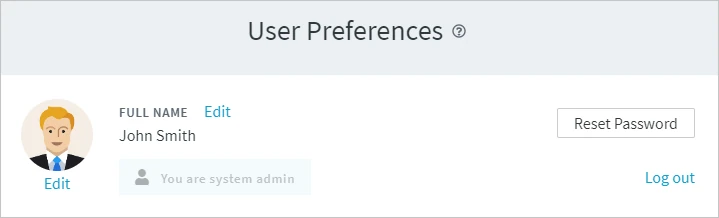
To change the password:
-
Click Reset Password.
-
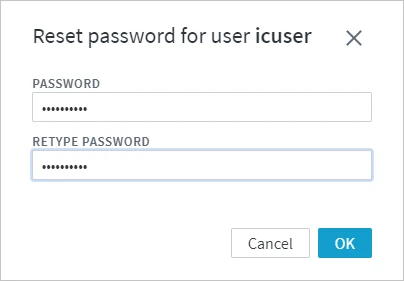
In the Reset Password for user dialog, type in a new password in the PASSWORD and RETYPE PASSWORD fields.
-
Click OK.
General Preferences
Under General Preferences, you can configure the following options:
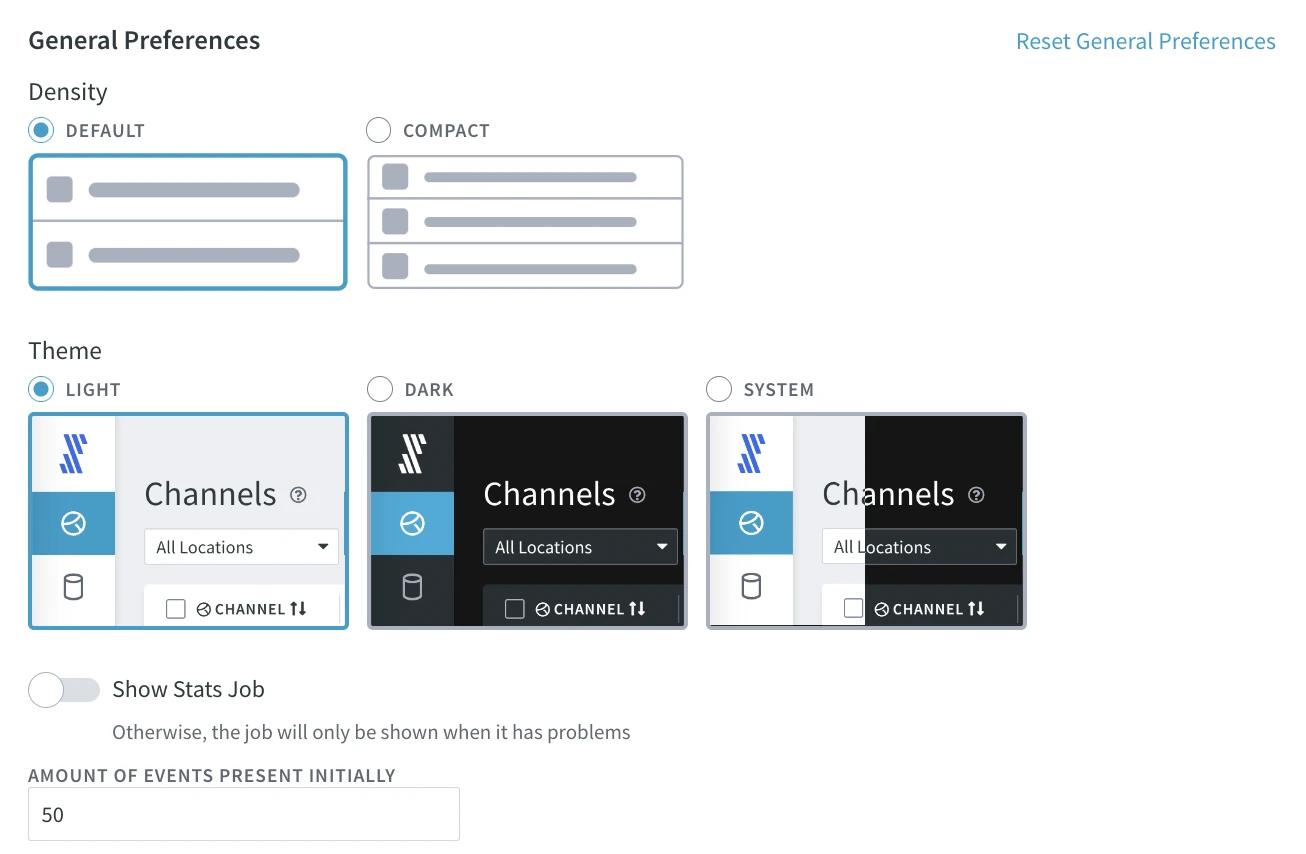
| Density |
Apply a default or a compact mode to apply to the user interface. |
| Theme |
Apply a color theme for the user interface. |
| Show Stats Job |
Show/hide the stats jobs on the Jobs page. |
| AMOUNT OF EVENTS PRESENT INITIALLY |
The number of events displayed on the Events page. |
Topology Preferences
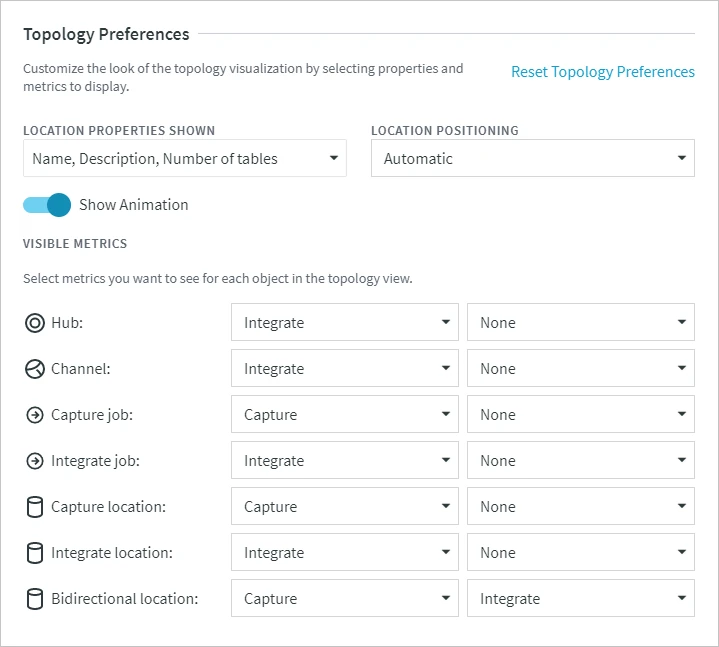
On the Topology Preferences pane, you can select the location properties and metric to be displayed on the Topology page.
| Option |
Description |
| LOCATION PROPERTIES SHOWN |
Configure the location properties to be displayed next to a location icon. Only the option selected first is displayed and the remaining are only visible on mouse hover.
Options available are:
- Name (default): Displays the location name.
- Description (default - visible on mouse hover): Displays the location description.
- Number of tables: Displays the total number of tables available in the location.
- Class: Displays the location class/type.
- Agent: Displays the node name where the DSS Agent for this location is running.
|
| LOCATION POSITIONING |
Configure the visual layout of locations over the left and right edges of the Topology area (source and target locations respectively).
Options available are:
- Automatic (default): 'Ungrouped' view. Source locations and target locations are spread over the left and right edges of the Topology area respectively.
- Group by Class: Source and target locations are grouped by location class. The location class name is displayed as the group name.
- Group by Agent: Source locations and target locations are grouped by an agent. The agent name is displayed as the group name.
|
| Show Animation |
Show/hide animation for data movement in a channel. |
| VISIBLE METRICS |
Configure the metrics to be displayed in a live status card for the following elements of replication:
- Hub: Available options are:
- None
- Capture: Displays the captured changes graph for the hub.
- Integrate
default: Displays the graph of the integrated changes for the hub.
- Channel : Available options are:
- None
- Number of tables : Displays the number of tables in the channel.
- Description: Displays the channel description.
- Capture: Displays the captured changes graph for the channel.
- Integrate
default: Displays the graph of the integrated changes for the channel.
- Capture Job : Available options are:
- None
- Number of tables: Displays the total number of tables captured by the capture job.
- Capture
default: Displays the graph of the captured changes for the capture job.
- Integrate Job : Available options are:
- None
- Number of tables: Displays the total number of tables captured by the integrate job.
- Integrate
default: Displays the graph of the integrated changes for the integrate job.
- Capture Location : Available options are:
- None
- Number of tables: Displays the total number of tables available in the capture location.
- Class: Displays the capture location class/type.
- Agent: Displays the node name where the DSS Agent for this location is running.
- Description: Displays the capture location description.
- Capture
default: Displays the graph of the captured changes for the capture location.
- Integrate location : Available options are:
- None
- Number of tables: Displays the total number of tables available in the integrate location.
- Class: Displays the integrate location class/type.
- Agent: Displays the node name where the DSS Agent for this location is running.
- Description: Displays the integrate location description.
- Integrate
default: Displays the graph of the integrated changes for the integrate location.
- Bidirectional location : This is applicable only for bidirectional locations. Available options are:
- None
- Number of tables: Displays the total number of tables available in the location.
- Class: Displays the location class/type.
- Agent: Displays the node name where the DSS Agent for this location is running.
- Description: Displays the location description.
- Capture
default: Displays the graph of the captured changes for the location.
- Integrate
default: Displays the graph of the integrated changes for the location
|