Upgrading from DSS 5 to DSS 6 | Data Source Solutions Documentation
Documentation: Upgrading from DSS 5 to DSS 6 | Data Source Solutions Documentation
Upgrading from DSS 5
This section describes the steps to upgrade from DSS 5 to DSS 6 without the need to Refresh tables. These instructions are suitable for scenarios with active replication in place to ensure that the replication continues seamlessly in the upgraded channel, picking up exactly where it left off in DSS 5.
Since DSS 6 is not compatible with DSS versions 5.x and 4.x, you must upgrade both the hub machine and agent machine to version 6.x.
- For the differences between DSS 5 and DSS 6, see Important Notes When Upgrading from DSS 5.
- For steps to migrate only channel definitions from DSS 5 to DSS 6, see section Migrating Channel from DSS Version 5
Prerequisites
Consider the following general prerequisites when upgrading from DSS 5 to DSS 6:
-
Do not disable/uninstall DSS 5 before ensuring DSS 6 works properly.
-
Before disabling DSS 5, it is recommended to take a full backup of the following DSS 5 objects:
- the DSS_HOME and DSS_CONFIG directories.
- the DSS hub database using the DBMS native backup option.
-
Perform the upgrade during scheduled downtime, as all DSS running services (DSS remote listener) must be stopped during the upgrade.
The following step-by-step guide uses Oracle source/target/repository databases as an example to demonstrate the upgrade process. However, if you move the DSS repository to another database vendor during the upgrade, ensure you have already installed the database that will serve as the new DSS repository and created a schema/database/user with the same name as the previous DSS repository prior to performing the upgrade.
Scripts Used During Upgrade
Upgrading from DSS 5 to DSS 6 includes the step of converting one or more channels from an DSS 5 Hub to DSS 6 Hub using the dssconvert5to6 script. The script exports DSS 5 channel(s) from the DSS 5 catalog export XML file or DSS 5 hub database to the DSS 6 compatible import JSON file. The JSON file is then used to import the channels to the DSS 6 Hub.
After the channel(s) are converted, the dssconvert5to6activate script must be used to generate the dssactivate and dsscontrol commands that will activate the DSS 6 channel to capture from the point where the DSS 5 channel stopped. The dssconvert5to6activate script inspects the DSS 5 *.cap_state file for capture status (such as the transaction log’s position of the beginning of the oldest open transaction) to generate the correct values for activation of replication in the DSS 6 channel(s).
The scripts come prepackaged with the DSS 6 distribution and can be found in the DSS_HOME/script/ directory.
- DSS version 5.3 or above is required to run the dssconvert5to6 and dssconvert5to6activate scripts.
- The dssconvert5to6 and dssconvert5to6activate scripts must be executed on the DSS 5 system because the DSS 5 command dss is used to run the scripts.
-
dssconvert5to6
Click here to see more information about dssconvert5to6
NAME
dssconvert5to6 - DSS 5 to DSS 6 channel migration
USAGE
<b>dss dssconvert5to6</b> <b>-f</b> <em>xmlfile</em> [<b>-c</b> <em>chn</em>]... <em>hub output.json</em><b>dss dssconvert5to6</b> [<b>-c</b> <em>chn</em>]... [<b>-h</b> <em>class</em>] [<b>-u</b> <em>user</em>] <em>hub output.json</em>DESCRIPTION
Exports one or more DSS 5 channels to a DSS 6 compatible import file, from either an DSS 5 catalog export file, or an DSS 5 hub database.
OPTIONS
Parameter Description -cchnChannel name. This is to convert a specific channel. -fxmlfileDSS 5 catalog export output file -hclassDSS 5 hub class -uuser[/pass]Hub database username and password for relevant hubs -
dssconvert5to6activate
Click here to see more information about dssconvert5to6activate
The dssconvert5to6activate script is supported in DSS versions up to 5.7.5.
**NAME**

**dssconvert5to6activate** - DSS 5 to DSS 6 migration of capture state

**USAGE**
`<b>dss dssconvert5to6activate</b> [<b>-c</b> <em>chn</em>]... [<b>-r</b>] [<b>-h</b> <em>class</em>] [<b>-u</b> <em>user</em>] <em>hub</em> `

**DESCRIPTION**
Inspects the DSS 5 \***.cap_state** file and generates the [**dssactivate**](/docs/dss6-command-line-interface-command-reference-dssactivate) and [**dsscontrol**](/docs/dss6-command-line-interface-command-reference-dsscontrol) commands to run in the DSS 6 system. This allows for a refresh-less upgrade from DSS 5 to DSS 6.

**OPTIONS**

<div style='overflow-x: auto'><table>
<tbody style="margin-left: 30.0px;">
<tr>
<th>Parameter</th>
<th>Description</th>
</tr>

<tr>
<td><code><b>-c</b><em>chn </em></code></td>
<td>Channel name.</td>
</tr>
<tr>
<td><strong><code>-r</code></strong></td>
<td>DSS child process to service remote DSS connections</td>
</tr>
<tr>
<td><code><b>-h</b><em>class</em></code></td>
<td>DSS 5 hub class</td>
</tr>
<tr>
<td><code><b>-u</b><em>user</em>[/<em>pass</em>]</code></td>
<td>Database username and password for relevant hubs</td>
</tr>
</tbody>
</table></div>

</details>
Notes for Upgrading from DSS 5 to DSS 6
For the following location types certain changes need to be made for operating DSS 6 smoothly. For more information, click on the required location type below:
Upgrading to DSS 6
The upgrade process includes three main phases:
Phase 1. Upgrading Test System
This phase involves the steps of upgrading the DSS 5 system running in the test system (equivalent to the DSS 5 system in the production system). In this phase, DSS 6 should be installed and configured to run independently of the DSS 5 system. After completing Phase 1 and ensuring that the replication runs smoothly in the DSS 6 system, proceed to Phase 2.

Perform the following steps to implement Phase 1 of the upgrade process:
-
If the DSS 5 system includes an DSS 5 Agent running on a remote location, install the DSS 6 Agent on the DSS 5 Agent machine to a new directory different from the DSS 5 installation directory. DSS 6 Agent should be installed on all DSS 5 Agent machines. For the steps to install the DSS 6 Agent, see section Installing DSS Agent.
Start the DSS 6 Agent on a port other than the DSS 5 Agent is currently running on. For example, if the DSS 5 Agent listens on port 4343, start the DSS 6 Agent agent on port 4340.
-
Create a new empty repository database for DSS 6. For the list of databases supported as repository databases, see section Repository Database in Capabilities.
-
Install DSS Hub System. If you are installing DSS Hub System on the same machine where DSS 5 is installed, the DSS Hub System must be installed as a separate system: to a directory other than the DSS 5 DSS_HOME and DSS_CONFIG directories. For the steps to install DSS Hub System, see section Installing DSS Hub.
-
After the installation is complete, set up the DSS Hub System, which requires connecting it to its repository database and initializing that database's repository tables. For the steps to set up the DSS Hub System, see section Setting up DSS Hub.
-
After completing the DSS Hub System setup, the Start page will open. Click Skip channel or location creation option available at the bottom of the page.
-
Export the DSS 5 channels to the DSS 6 compatible import file (JSON) using the dssconvert5to6 script, which is available in the DSS_HOME/script/ directory of the DSS 6 distribution. The generated file will be used to import the channel definition to the DSS 6 Hub.
There are two ways to do this:
-
Method 1: Generate DSS 5 channel export file (XML) and convert it to DSS 6 compatible import file (JSON).
-
Use the DSS 5 command dsscatalogexport or the Export Catalogs option in DSS 5 GUI to generate the DSS 5 channel export file (XML).
-
Run the dssconvert5to6 script to convert the DSS 5 channel export file (XML) to DSS 6 compatible import file (JSON):
dss <em>dssconvert5to6_script_path</em>/dssconvert5to6 -f <em>dss5_export</em>.xml <em>dsshub</em> <em>export_channel</em>.jsonTo migrate a specific channel (e.g. mychannel) only, use option
<b>-c</b>:dss <em>dssconvert5to6_script_path</em>/dssconvert5to6 -c mychannel -f <em>dss5_export</em>.xml <em>dsshub</em> <em>export_channel</em>.json
-
-
Method 2: Generate the DSS 6 compatible import file (JSON) by directly fetching data from the DSS 5 hub database.
-
Run the dssconvert5to6 script:
dss <em>dssconvert5to6_script_path</em>/dssconvert5to6 -h oracle -u <em>dssuser/dss</em> <em>dsshub</em> <em>export_channel</em>.jsonFor more information about using option
<b>-h</b>for other location types (class), see Calling DSS on the Command Line (DSS 5).-
In the DSS 6 system, import the channel from the DSS 6 compatible import file (JSON) generated in the previous step:
{% tabs %}
{% tab label="UI" %}
-
On the left sidebar, click CHANNELS.
-
On the Channels page, click Import Channel Definitions.

-
In the file browser, select the DSS 6 compatible import file (e.g. export-channel.json) that was generated on step 6 and click Open.
-
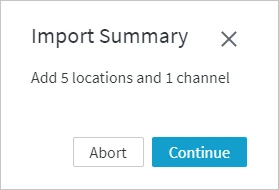
The Import Summary dialog shows the details of the import. Click Continue.
-
The channel will be added to the Channels page.

{% /tab %}
{% tab label="CLI" %}
Run command dssdefinitionimport to import the channel definition:
dssdefinitionimport <em>dsshub</em> <em>path_to_export_channel</em>.json{% /tab %}
{% /tabs %}
-
-
If the channel contains remote locations with an DSS 5 Agent configured on them, change the agent port to the port used to start the DSS 6 Agent.
Repeat the agent configuration steps (a-f) for all locations in the channel that use an DSS Agent for connection.
{% tabs %}

{% tab label="UI" %}

1.  On the left sidebar, click **LOCATIONS**.

2.  Click the location name to open its **Location Details** page.

3.  In the **Agent** pane, click **Edit**.

4.  In the **Agent** dialog, specify the port of the DSS 6 Agent and click **Test Agent Connection**.

5.  Click **Save**.

    <div class="callout callout-important">
To configure the agent, click Configure Agent Service. For more information about configuring the agent, see section Configuring DSS Agent from Browser.
-
-
-
-
-

{% /tab %}
{% tab label="CLI" %}
Run command [**dsslocationconfig**](/docs/dss6-command-line-interface-command-reference-dsslocationconfig) to change the port number:
```shell
dsslocationconfig <em>dsshub</em> <em>location</em> Agent_Port=<em>portnumber</em>
```
<div class="callout callout-important">
To configure the DSS 6 Agent, use command dssagentconfig. For more information about configuring the agent, see section Configuring DSS Agent from CLI.


 related to the compare job and select Go to Event: this will open the

