Table Details - DSS 6 | Data Source Solutions Documentation
Documentation: Table Details - DSS 6 | Data Source Solutions Documentation
Table Details
The Table Details page provides detailed information about a specific table.
Table Naming
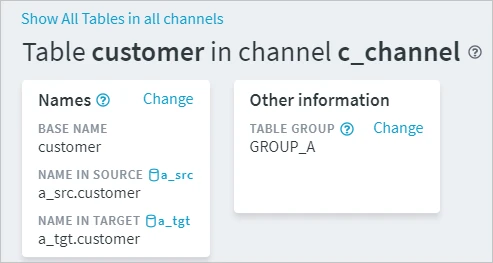
The header section of the Table Details page displays information about the table's name in a channel, base name, name in a source database, name in a target database, and the table group. For more information about table names, see section Table Name and Base Name.
The Change button in the Names section opens the Rename Table dialog, where you can change the table's name in the channel and base name. For the steps to renaming a table, see section Renaming Table.
The Change button in the Other information section opens the Change Table Group dialog, where you can change the table group for the table.
| Field | Description |
|---|---|
| BASE NAME | The actual name of a replicated table in a source or target database. Every table involved in replication will be assigned a Base Name and Table Name. The Base Name of a table may differ from the Table Name defined in the channel, e.g. if it contains special characters that are not supported by DSS or if its name is too long. |
| NAME IN SOURCE | The actual name of a table in a source database including a schema name (if supported by a DBMS). This is what the Table Name is actually mapped to in the source database. |
| NAME IN TARGET | The actual name of a table in a target database including a schema name (if supported by a DBMS). This is what the Table Name is actually mapped to in the target database. |
| TABLE GROUP | A logical group of one or more tables. Combining tables in one table group allows you to define a single action on multiple tables at a time, rather than defining multiple identical actions for each table separately. |
Columns
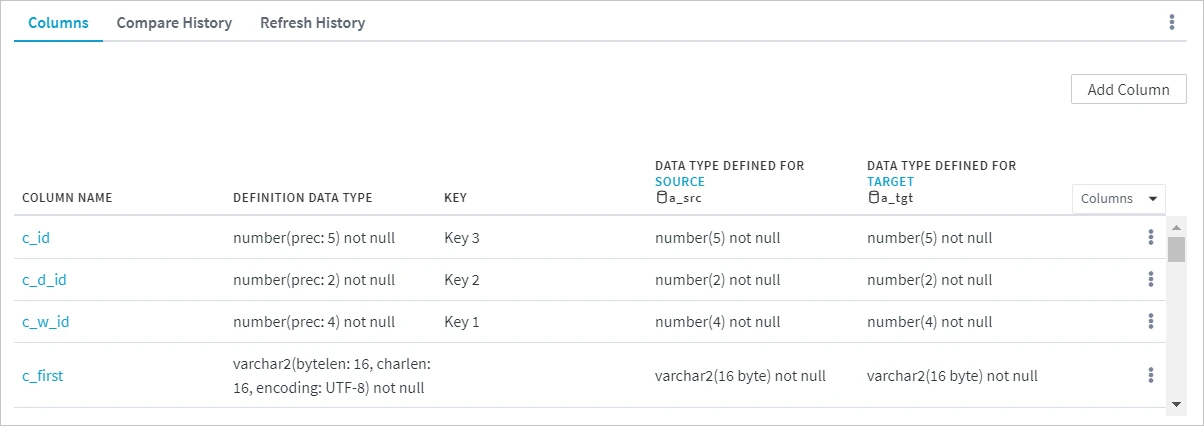
Under the Columns tab, you can find a grid with detailed information about each column in the table.
| Column | Description |
|---|---|
| COLUMN NAME | Unique name of a column as defined in a replication channel. |
| DEFINITION DATA TYPE | Data type of a column as defined inside your channel definition. |
| KEY | A column defined as a replication key that DSS uses for replication. |
| DATA TYPE DEFINED FOR SOURCE | The actual data type in a source database. |
| DATA TYPE DEFINED FOR TARGET | The actual data type in a target database. Usually, the Definition Data Type matches the Data Type Defined for Source, but it is quite common that the Data Type Defined for Target is slightly different. For example, if there is a column in an Oracle source location with data type number, then the Definition Data Type will be number. But on an SQL Server target location, it will be decimal. For more information on data type mapping in DSS, see section Data Type Mapping. |
If you click the Columns button near the Data Type Defined For Target column, you will see the list of additional columns for displaying advanced information for the current table.
| Column | Description |
|---|---|
| COLUMN PROPERTIES FOR SOURCE | The ColumnProperties action(s) defined on the table for a specific column on a source location. Clicking the property will open the Actions panel with a filter on the ColumnProperties action. |
| COLUMN PROPERTIES FOR TARGET | The ColumnProperties action(s) defined on the table for a specific column on a target location. Clicking the property will open the Actions panel with a filter on the ColumnProperties action. |
Contexts
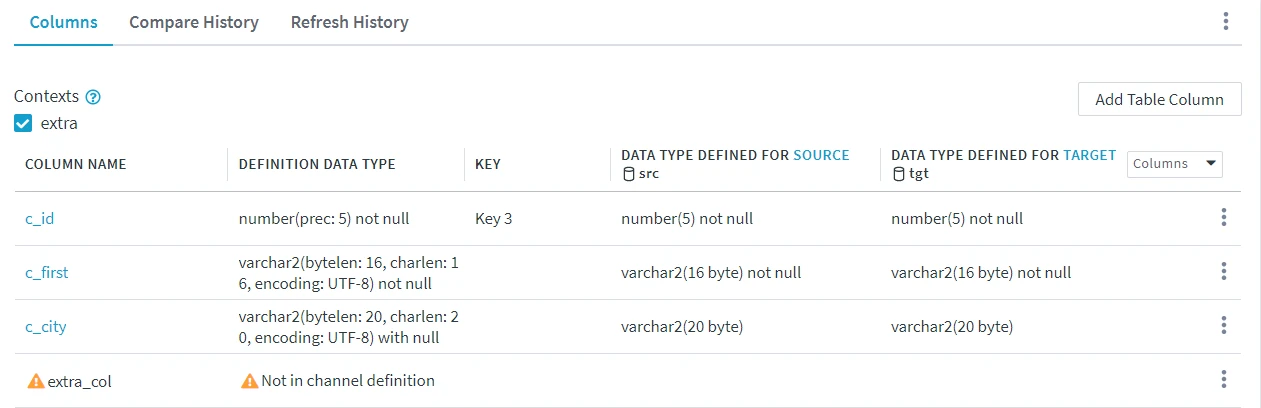
The Contexts area is displayed on the Columns tab when actions TableProperties and/or ColumnProperties with parameter Context are defined for the table. The main purpose of this option is to reflect the state of the table if the context was enabled. For example, if action ColumnProperties with parameters Name=extra_col, Extra and Context=extra is defined for a table, and context extra is enabled in the Contexts area, column extra_col will be displayed in the table grid. For more information, see the concept page Refresh and Compare Contexts.
Managing Columns
The following options to manage columns are available on the Columns tab as well as under the More Options menu  :
:
-
Add Column
Add column(s) to the table. -
Check Definition Against Actual Source or Target
Compare the table definitions in the channel with the actual table definition(s) in the database. -
Redefine Table From Actual Source or Target
Compare the actual table definition in a database (source or target) with the table definition in the channel and update the table definition in the channel accordingly. -
Activate Replication
Start replication for the current table. Set or reset replication components if required. -
Deactivate Replication
Stop replication for the current table. This will drop replication components that were created for this table. -
Compare Data
Compare tables in the current table between source and target. -
Refresh Data
Copy data in the current table from the source location to the target location. -
Create/Alter Target Table
Copy the current table to a target location. This will either create a new table (if absent) or alter the existing table in the target location, and optionally fill the table with the data from the source. -
Export Table Definition
Export one or multiple table definitions into a JSON file. -
View Actions
View actions defined in a channel in the Actions panel. -
Add Action
Add action to define the behavior of the replication.
Each column has its own More Options menu with the following options:
- Edit Column
Edit column name and data type, add attributes, make it a key column. - Add Column Before
Add a column to the table before the current column. - Add Column After
Add a column to the table after the current column. - Delete from Definition
Delete the column from the channel definition.
Compare and Refresh History
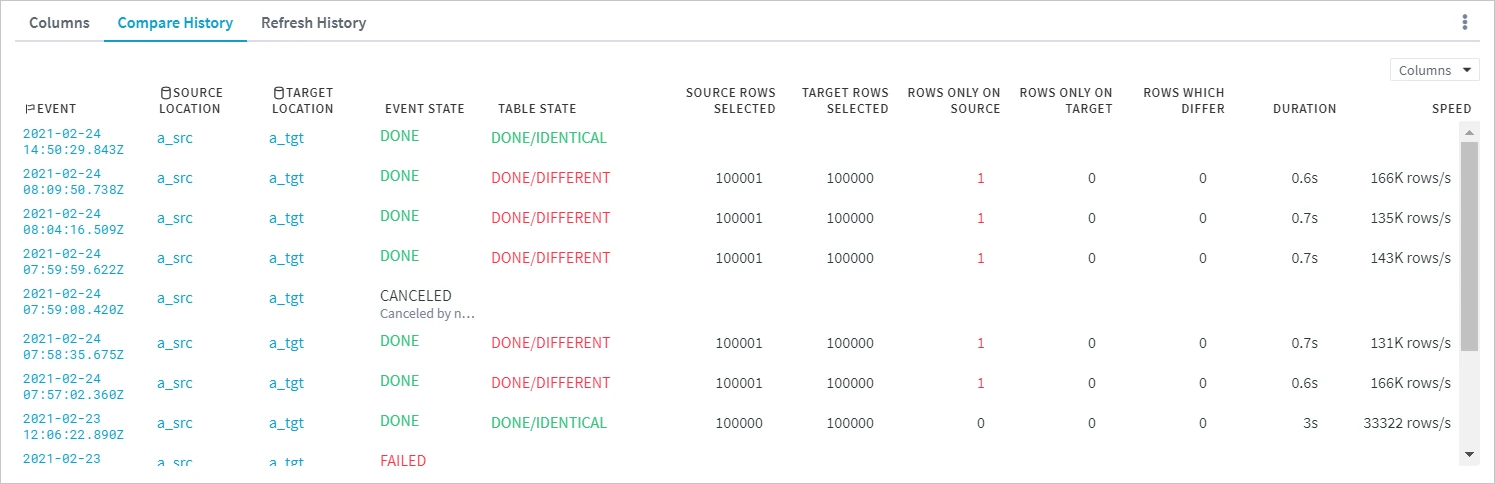
Under the Compare History and Refresh History tab, you can find detailed information about compare and refresh operations performed on the table. Each time you run a compare or refresh operation, a corresponding event is created in the event system. The Compare History and Refresh History tables display the details of compare and refresh events associated with the current table.
| Field | Description |
|---|---|
| EVENT | Timestamp of the event. |
| SOURCE LOCATION | Source location of which the table is a member. |
| TARGET LOCATION | Target locations of which the table is a member. |
| EVENT STATE | Status of the event. The following event states are available:
|
| TABLE STATE | Status of the table. The following table states are available:
|
| SOURCE ROWS SELECTED | Total number of rows selected in the source table for comparing/refreshing. |
| TARGET ROWS SELECTED | Total number of rows selected in the target table for comparing/refreshing. |
| DURATION | Time taken to compare/refresh the table. |
| SPEED | Speed of compare/refresh operation in rows per second. |
If you click the Columns button, a drop-down menu will show additional columns for displaying advanced information about the compare and refresh operations. For more information about data displayed in these columns, see Event Details.
The timestamp in the EVENT column is a link to the corresponding Event Details page. Names of source and target locations are links to the corresponding Location Details page.