SAP HANA as Source - DSS 6 | Data Source Solutions Documentation
Documentation: SAP HANA as Source - DSS 6 | Data Source Solutions Documentation
SAP HANA as Source
Capture
Data Source Solutions DSS allows you to Capture changes from SAP HANA. This section describes the configuration requirements for capturing changes from HANA location. For the list of supported HANA versions from which DSS can capture changes, see Capture changes from location in Capabilities.
- DSS supports capture from HANA only on Linux.
- Until version 6.1.0/25, DSS does not support capture from HANA encrypted logs.
- DSS supports capture from SAP HANA in both on-box and off-box configurations: on-box refers to DSS and the HANA database running on the same machine, while off-box refers to them running on different machines.
- SAP HANA as a source does not support improved re-sync detection.
Table Types
DSS supports capture from the following table type in HANA:
- column-storage
Capture Methods
DSS allows the following methods for capturing (Capture) changes from HANA:
Direct DBMS Log Reading
Capture changes directly from HANA's log segments and log backups. This method is very fast in capturing changes from the HANA database. However, it requires DSS to be installed on the HANA machine.
Archive Only
In this capture method (Capture_Method=ARCHIVE_ONLY), DSS reads changes from backup transaction log files. This capture method allows the DSS process to reside on machine other than that on which HANA DBMS resides and read changes from backup transaction log files that may be sent to it by some file transfer mechanism. DSS must be configured to find these files by defining the location properties BACKUP DIRECTORY (Archive_Log_Path) and optionally FILENAME FORMAT (Archive_Log_Format) while creating a location or by editing the existing location's source and target properties
This capture method will generally expose higher latency than the Direct DBMS Log Reading method because changes can only be captured when the transaction log backup file is created. However, the Archive Only method enables high-performance log-based capture with minimal OS privileges at the cost of higher capture latency.
Grants for Capture
The following grants are required for capturing changes from HANA:
-
To read from tables which are not owned by DSS User (using action TableProperties with parameter Schema), the User must be granted select privilege.
grant select on <em>tbl</em> to <em>username</em>; -
The User should also be granted
selectpermission from some system table and views. In HANA, however, it is impossible to directly grant permissions on system objects to any user. Instead, special wrapper views should be created, and the DSS database User should be granted read permission on this views. To do this:-
Connect to the HANA database as user SYSTEM.
-
Create a schema called _DSS.
create schema _DSS; -
Grant
selectprivilege on this schema to User.grant select on schema _DSS to <em>username</em>; -
Execute the dsshanaviews.sql script from the DSS_HOME/dbms/hana directory. This will create a set of views that DSS uses to read from system dictionaries on HANA.
-
OS Level Permissions or Requirements
To capture from HANA database, DSS should be installed on the HANA database server itself, and the DSS Agent listener should be configured to accept remote connections. The operating system (OS) user under which the DSS is running should have READ permission on the HANA database files. This can typically be achieved by adding this user to the sapsys user group.
Channel Setup Requirements
It is not possible to enable 'supplemental logging' on HANA. This means that the real key values are not generally available to DSS during Capture. A workaround for this limitation is capturing the Row ID values and use them as a surrogate replication key.
The following two additional actions should be defined prior to Adding Tables to a Channel to instruct DSS to capture Row ID values and to use them as surrogate replication keys.
| Location | Action | Parameter(s) | Annotation |
|---|---|---|---|
| Source | ColumnProperties | Name=dss_rowid CaptureFromRowId | This action should be defined for capture locations only. |
| * | ColumnProperties | Name=dss_rowid SurrogateKey | This action should be defined for both capture and integrate locations |
Log Mode and Transaction Archive Retention
For DSS to capture changes from HANA, the automatic backup of transaction logs must be enabled in HANA. Normally DSS reads changes from the 'online' transaction log file, but if DSS is interrupted (say for 2 hours) then it must be able to read from transaction log backup files to capture the older changes. DSS is not interested in full backups; it only reads transaction log backup file.
To enable automatic log backup in HANA, the log mode must be set to normal. Once the log mode is changed from overwrite to normal, a full data backup must be created. For more information, search for Log Modes in SAP HANA Documentation.
The log mode can be changed using HANA Studio. For detailed steps, search for Change Log Modes in SAP HANA Documentation. Alternatively, you can execute the following SQL statement:
alter system alter configuration ('global.ini', 'SYSTEM') set ('persistence', 'log_mode') = 'normal' with reconfigure;
Transaction Log (archive) Retention
If a backup process has already moved these files to tape and deleted them, then the DSS Capture will give an error and a Refresh will have to be performed before replication can be restarted. The amount of 'retention' needed (in hours or days) depends on organization factors (how real-time must it be?) and practical issues (does a refresh take 1 hour or 24 hours?).
When performing log-shipping (Archive Only capture), file names must not be changed in the process because the begin-sequence and timestamp are encoded in the file name, and the Capture uses them.
Capturing from HANA Scale-out Cluster
DSS supports capturing changes from a HANA scale-out cluster (running SAP BW or SAP BW4/HANA). However, it requires a separate DSS capture process configured for each active node in the cluster. This is because DSS does not generally support capture from generic multi-node HANA deployments. In a scale-out environment, a separate Capture process for each node is mandatory to ensure complete data capture.
To configure a separate capture process for each node, you must -
-
Install DSS agent on each node,
-
Create a location for each node in DSS (e.g., sap1, sap2, and sap3), and
-
Add these locations to the same LOCATION GROUP in the channel (e.g., the location group SOURCE would include locations sap1, sap2, and sap3).
Known Limitations
This section describes the known limitations for capturing changes from a HANA scale-out cluster using DSS.
-
If the data is redistributed, you must perform a Refresh.
-
If tables with partitions are distributed over nodes, DSS cannot capture DML operations that result in data moving to a different partition.
-
DSS cannot maintain transactional integrity.
Capturing from HANA Encrypted Log Files and Log Backups
<b>Since</b> v6.1.0/25
DSS supports capturing changes from HANA encrypted log files and log backups.
If both compression and encryption are enabled for the log backups, you may randomly encounter the following error: F_JZ0A1B: Unsupported record version code "X" encountered at seq# 520809984 in backup transaction log file (where "X" can range from 0 to 255). To resolve this issue, you need to disable either compression or encryption, or contact SAP HANA support.
To capture from encrypted log files and log backups the following must be configured:
-
In addition to the grants provided in section Grants for Capture, the DSS database user must be granted the following privilege to read the encrypted log files and log backups:
grant execute on _DSS."/DSS/ROOT_KEYS_EXTRACT" to <em>username</em>; -
If using a multi-tenant configuration, the encryption configuration management should be delegated to tenants. Execute the following command on the system database to change control over to the tenant databases:
alter system encryption configuration controlled by local databases;This step should be skipped if using a single database configuration.
-
Set password for the encryption root keys backup in the database from which the capture is to be done:
alter system set encryption root keys backup password <em>password</em>; -
Define location property HANA_Root_Keys_Backup_Password. The password that was set for the encryption root keys backup in the previous step should be set for this property.
dsslocationconfig <em>hub</em> <em>hana_location_name</em> HANA_Root_Keys_Backup_Password=<em>password</em>;
Capturing from SAP Source
DSS allows you to capture changes from a HANA database used by an SAP ECC or S/4 system. To enable capture using the SAP dictionary, select the SAP Source option (or define the equivalent location property SAP_Source_Schema) while creating a location or by editing the existing location's source and target properties. While adding tables to a channel, the Table Selection dialog will then display the SAP tables defined in the SAP dictionaries.
SAP columns are non-nullable by default. They will be described as nullable in the hub's repository and thus as nullable in the target. This is valid for the non-key columns. Key columns will remain non-nullable.
SAP Data Types Conversion
<b>Since</b> v6.1.0/7
This option enables conversion/mapping of SAP specific data types (available in SAP dictionary meta-data) in source location to corresponding data type in the target location. The SAP specific data type will be localized with the source DB's data type and then mapped to the DSS Repository data type. For example, if you have an SAP or S/4 system on SAP HANA, theDATSdata type will be localized as SAP HANADatetype, and then it is mapped to DSS Repository typeansidate.This feature is supported for the following SAP specific data types:
- DATS
If the SAP Data Types Conversion option is NOT selected, SAP specific data types are mapped to various other DSS Repositry data types. For more information, see Data Type Mapping for SAP NetWeaver (or SAP dictionary).
If the SAP Data Types Conversion option is selected during location creation, DSS will automatically define action TableProperties with parameters CoerceErrorPolicy and CoerceErrorType.
If the SAP Source (SAP_Source_Schema) location property/option is selected during location creation, by default, the SAP Data Types Conversion option also gets selected.
However, to enable SAP data type conversion for an existing location, select the SAP Data Types Conversion option by editing the location's source and target properties and then manually define action TableProperties with parameters CoerceErrorPolicy and CoerceErrorType.
Recognizing SAP Archived Records
<b>Since</b> v6.1.5/7DSS can distinguish between records manually deleted by a user and records automatically archived by SAP on a HANA database. By recognizing deletions performed by the archiving process, DSS can mark these records as archived instead of deleted, ensuring the data remains relevant for reporting purposes.
Perform the following to enable this feature:
-
Configure SAP HANA database:
The following script and statements should be executed by the SAP application schema owner (or any other user with privileges to make changes in the schema).
-
Execute the dsshanasaparch.sql script under the same schema that contains the SAP dictionaries. This script is available in the DSS_HOME/dbms/hana directory. It creates tables that DSS uses to identify the records automatically archived by SAP HANA.
-
Execute the statement
INSERT INTO "/DSS/IU_ARCHBLK" VALUES (:<em>user_name</em>)to register an SAP application user that will perform archive deletion in SAP HANA. All deletions made by this user will be marked as archived.The internal table /DSS/IC_ARCHBLK tracks archive deletions by creating a single record for each process. It serves only as a transactional marker and has no other purpose. To prevent data accumulation, this table requires periodic cleanup. You can use the built-in functionalities of your database system to automate the cleanup of this table. Alternatively, you can manually delete old entries from the table.
- Grant
CREATE ANY TRIGGERprivilege to the DSS database user:GRANT CREATE ANY TRIGGER TO <em>user_name</em>;
-
Create the SAP HANA location and define the required actions in DSS:
-
Select the Recognize SAP Archiving Process option (or define the equivalent location property SAP_Archiving) while creating a location or by editing the existing location's source and target properties.
-
Define the following three actions on the target location:
Location Action Parameter(s) Target ColumnProperties Name={col_name_for_arch_deletes}
ArchiveDelete
ExtraTarget Restrict CompareCondition=“{col_name_for_arch_deletes}=0”
Context=!compare_deletedTarget Restrict Context=refresh_keep_deletes
RefreshCondition=“{col_name_for_arch_deletes}=0"These action definitions are required to create an extra column col_name_for_arch_deletes in the target location. The value populated in this column indicates the type of record deletion:
- If a row is automatically archived by SAP, the value in this column will be set to 2.
- If parameter SoftDelete is also defined, value 1 indicates the record was manually deleted by a user (who is not registered as an SAP application user for archive deletion).
- Value 0 indicates the record is not deleted.
If you use ArchiveDelete and SoftDelete for the target location simultaneously, the columns created for ArchiveDelete and SoftDelete must use the same column names. Otherwise, errors will occur.
Defining [**ColumnProperties**](/docs/dss6-action-reference-columnproperties) action with **ArchiveDelete** parameter is similar to defining [**SoftDelete**](/docs/dss6-action-reference-columnproperties#softdelete) for identifying the archived deletes.To ensure that the feature is configured correctly and functioning as intended, check the DSS logs for the target (Integrate) location. The logs should include a line similar to
Integrated <em>number_of_records</em> archive deletes for table <em>table_name</em>.Capturing from Backint
<b>Since</b> v6.1.0/24DSS supports capturing changes from backups created using Backint for SAP HANA.
Backint for SAP HANA is an API that enables direct connectivity between third-party backup agents/applications and the SAP HANA database. Backups are transferred from the SAP HANA database to the third-party backup agent, which runs on the SAP HANA database server and sends the backups to the third-party backup storage system.
DSS uses the HANA system views (backup catalogs) to get the list of existing log files.
DSS does not directly access the third-party backup storage system. Instead, it interacts with the SAP HANA Backint client, which is installed on the SAP HANA database node. The Backint client handles all communication with the third-party backup storage system.
The configuration and authorization of the Backint client depend on the specific Backint software provider. For most Backint implementations, configuration is managed through a YAML configuration file. This file typically governs defining user permissions for access to the storage system, configuring log file locations, setting up repository-specific access, such as restricting the client to read-only permissions for specific repositories.
However, some Backint software providers may use different formats or methods for configuration and authorization. For example, Microsoft Backint uses a configuration mechanism that does not rely on a YAML file.
Always refer to the documentation provided by your Backint software provider to understand the specific configuration and authorization requirements. DSS relies on the Backint client to manage access, and you must configure the Backint client according to your environment and storage system.
Both capture methods (Direct DBMS Log Reading and Archive Only) are supported when the DSS and HANA database are located on the same node. However, if they are on separate nodes, only the Archive Only capture method is available.
Configuration for Capturing from Backint
To enable DSS to capture data from backups created using Backint for SAP HANA, perform the following steps:
-
If you are upgrading from DSS v6.1.0/23 or an earlier version, run the script dsshanaviews.sql located in the DSS_HOME/dbms/hana directory. The script creates a set of views that DSS uses to read from system dictionaries in SAP HANA.
-
Configure location properties:
-
If DSS and the SAP HANA database are on the same node: The values for the location properties BACKINT EXECUTABLE PATH (Hana_Backint_Executable_Path) and BACKINT CONFIGURATION FILE PATH (Hana_Backint_Configuration_Path) are retrieved automatically from the SAP HANA database.
-
If DSS and the Backint client are on different nodes: DSS supports running Backint on a different node only if the Backint software allows and supports this configuration. For example, AWS Backint has been tested and is known to work in this scenario. However, this may not be possible for all Backint providers, as it depends on their implementation. In such cases, you must manually define the location properties BACKINT EXECUTABLE PATH (Hana_Backint_Executable_Path) and BACKINT CONFIGURATION FILE PATH (Hana_Backint_Configuration_Path) in DSS.
The configuration and setup of Backint on a different node are entirely your responsibility. Ensure that the Backint executables and any dependencies are properly installed and accessible on the remote node.
-
Add Backint as a trusted external application: By default, DSS does not trust external applications. To enable trust, do the following:
-
Copy the file dssosaccess_example.conf from DSS_HOME/etc to DSS_CONFIG/etc, and rename it to dssosaccess.conf.
-
Edit the dssosaccess.conf file to add the full path of the Backint application under
Allowed_Plugin_Paths. Typically, the default path is /usr/sap/HDB/SYS/global/hdb/opt. For example:{ ## This section safelists two directories for command execution. ## By default, DSS will only run binaries and scripts inside ## '$DSS_CONFIG/plugin/agent' and '$DSS_CONFIG/plugin/transform' # Allowed_Plugin_Paths: [ /usr/sap/HDB/SYS/global/hdb/opt ] }
-
Rubrik Configuration
To capture SAP HANA backups with Rubrik, you need to additionally configure two environment variables for the DSS OS user account that runs the DSS agent:
$DBNAME- represents the SAP HANA database name$SAPSYSTEMNAME- indicates the SAP system identifier known as SID (System ID)
To set these variables:
- Log in as the user who runs the Backint interface (typically the SIDadm user).
- Confirm the values for
$DBNAMEand$SAPSYSTEMNAMEwith the SAP Basis team, who can retrieve them by running theenvcommand on the SAP system. - Set these values as environment variables for the DSS OS user or add these environment variables into the channel configuration on the capture side.
AWS Backint Configuration
For AWS Backint, perform the following additional steps:
-
Create a custom AWS Backint configuration file on the HANA node. For example:
cp /hana/shared/aws-backint-agent/aws-backint-agent-config.yaml \ /hana/shared/aws-backint-agent/aws-backint-agent-config-dss.yaml -
Modify the
LogFileparameter in the newly created configuration file:LogFile: "/hana/shared/aws-backint-agent/aws-backint-agent-catalog-dss.log" -
Specify the file path of the new configuration file (for example, aws-backint-agent-config-dss.yaml) in the location property BACKINT CONFIGURATION FILE PATH (Hana_Backint_Configuration_Path).
<div class="callout callout-important">Backint log files generally have permissions such as 622 (read-write for the owner, read-only for group and others). Since the DSS user typically belongs to the same group as the SAP HANA owner (for example, hdbadm), adjusting the
umaskpolicy could work but is generally considered insecure. -
-
-
- Grant
-
-
As a result of these configurations, two Backint log files are generated:
- Standard backup log: Contains information on all standard backup operations
- DSS-specific log: Contains information related specifically to DSS operations
Shared Key Authentication for AWS S3
If your Backint storage is hosted on Amazon S3 and uses shared key authentication, you may need to create an AWS configuration folder named $(HOME)/.aws and place a 'credentials' file inside it. The 'credentials' file should include a section specifying the aws_access_key_id and aws_secret_access_key required for authentication.
Disabling Backint Functionality
To disable Backint in DSS, set the environment variable ZIZ_HANA_USE_BACKUP_CATALOG to 0.
SAP HANA Primary/Secondary Configuration for Online Log Replication
This section provides instructions for setting up DSS to replicate online logs in a high availability (HA) environment using SAP HANA with an Active/Passive (Primary/Secondary) setup.
Components Involved in the Setup
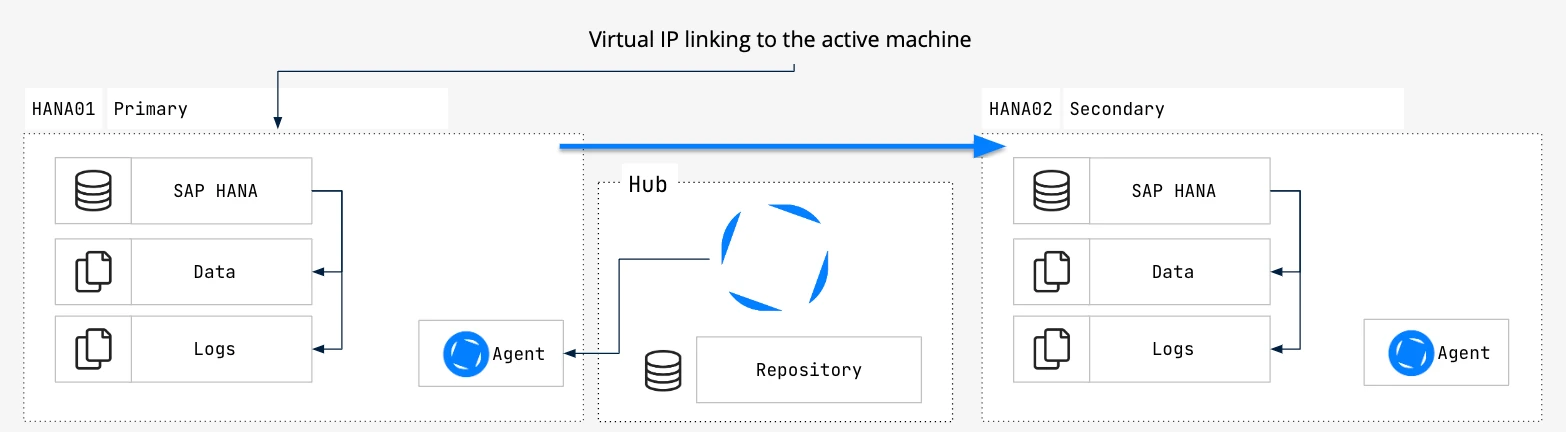
-
SAP HANA Instances:
- HANA01 (Primary/Active): Handles all transactions and data processing, writing transaction logs to a local disk and backup logs to a shared disk, typically EFS (Elastic File System) or NFS (Network File System).
- HANA02 (Secondary/Passive/Read-Only): Standby instance, does not process transactions until a switchover occurs.
-
DSS Hub Server: Orchestrates the replication process. It is located on a separate server connected to both SAP HANA instances (HANA01 and HANA02) via a Virtual IP, which always points to the active node. The DSS Hub Server communicates with the active node's DSS Agent, switching to the passive node in case of failover.
-
DSS Agents: Installed on both HANA01 and HANA02, capturing transaction logs and replicating them through the DSS Hub Server. The DSS Agents read the transaction logs from the local disk and backup logs from the shared disk (EFS or NFS).
-
Virtual IP Linking: Ensures continuous DSS Hub Server communication with the active SAP HANA instance, eliminating manual configuration during failover.
Prerequisites
Before proceeding, verify the following:
- DSS Hub Server is installed and configured on a separate server.
- DSS Agent is installed on both HANA01 and HANA02 instances.
- DSS Agent is configured on the primary/active node (HANA01).
- The Virtual IP address points to the DSS Agent on the SAP HANA active node (HANA01).
- Replication mode: Set the
SYNC_MODEparameter to eitherSYNCorSYNCMEMmode while registering the secondary system. Only these modes are supported by DSS for replication. - System replication operation mode: Set the
OPERATION_MODEparameter to eitherlogreplayorlogreplay_readaccesswhile registering the secondary system. Only these modes are compatible with DSS.
Synchronize DSS Agent Configuration
Perform the following steps to ensure that the DSS Agent configurations are identical across both primary and secondary instances of SAP HANA (HANA01 and HANA02):
- Navigate to the directory where the DSS Agent configuration files are stored on HANA01 -
$DSS_CONFIG/etc. - Copy the dssagent.conf and dssagent.user files to the corresponding directory on HANA02 -
$DSS_CONFIG/etc. - On HANA02, re-start the DSS Agent to apply the new configuration. The steps to restart the agent will vary based on how it is configured on your operating system. For more information, see System Configuration for DSS Agent on Linux.
SAP Configuration
By default, SAP changes the permissions on transaction log files from 640 to 600, restricting access to the SAP user only. This configuration prevents the sapsys group from reading these files.
To enable sapsys to function correctly, modify the permissions so that the sapsys group has read-only access to the transaction log files on the passive node HANA02:
-
Log in to the HANA02 system using an account with sufficient privileges to change file permissions.
-
Navigate to the directory where the transaction log files are stored. The path may vary depending on your SAP setup.
-
Use the
chmodcommand to change the permissions of the transaction log files to640. This setting allows the SAP user to read and write, and thesapsysgroup to read. Replacepath_to_transaction_logswith the actual path to your transaction log files.chmod 640 <em>path_to_transaction_logs</em> -
Use the
chgrpcommand to set the group ownership of the files tosapsys:chgrp sapsys <em>path_to_transaction_logs</em>If SAP automatically reverts these permissions back to
600, consider setting up a script or a cron job that periodically checks and resets the permissions to640.-
Verify that the permissions are correctly set by listing the files:
ls -l <em>path_to_transaction_logs</em>The permissions should display as
-rw-r-----for each log file, indicating that the SAP user has read and write access, and thesapsysgroup has read access.
Capture Limitations
This section describes the limitations for capturing changes from HANA using DSS.
-
DSS does not support Capture from the following table types - pool, cluster, and STXL (long text).
-
When using SAP HANA as a source location, DSS does not support file-based location types (such as Amazon S3, Apache HDFS, Apache Kafka, Azure Blob Storage, Azure Data Lake Storage, Files, Google Cloud Storage) as target location.
-
Until version 6.1.0/25, DSS does not support Capture from HANA encrypted logs.
HANA allows encryption of transaction logs and transaction log backups separately. So if only the transaction logs are encrypted and not the transaction log backups, then DSS can capture changes using Archive Only method.
-
Since HANA does not support supplemental logging, DSS will not be able to process certain actions/parameters that require the value of a column, and that column is not present in the HANA logs. The actions/parameters affected by this limitation are listed below.
-
The following action/parameter definitions will not function due to this limitation:
- Action CollisionDetect
- Parameter TimeKey in action ColumnProperties
- Parameter DbProc in action Integrate
- Parameter Resilient in action Integrate (will not function only if a row is missing on the target)
- Parameter BeforeUpdateColumns in action FileFormat
- Parameter BeforeUpdateColumnsWhenChanged in action FileFormat
-
The following action/parameter definitions will not function if it requires the value of a column and that column is not present in the HANA logs:
- Parameter CaptureExpression in action ColumnProperties (however, CaptureExpressionType=SQL_WHERE_ROW will function normally)
- Parameter IntegrateExpression in action ColumnProperties
- Parameter RenameExpression in action Integrate
- Parameter CaptureCondition in action Restrict
- Parameter IntegrateCondition in action Restrict
- Parameter HorizColumn in action Restrict
- Parameter AddressTo in action Restrict
- Online compare with mode Combine Initial Differences with Changes Captured while Compare is Running in UI (equivalent to dsscompare -o diff_cap in CLI) is not supported for HANA source.
Compare and Refresh from HANA
DSS allows you to perform only Compare and Refresh from HANA database (without using Capture). This section describes the configuration requirements for performing only Compare and Refresh from HANA database.
Grants for Compare and Refresh from HANA
This section lists the grants required for performing only Compare and Refresh from HANA database.
-
The DSS database User must be granted the following privilege to read from the HANA database:
grant select on <em>tbl </em>to <em>username</em>;
-
-
-