Migrating Channel from Pre-Production to Production - DSS 6 | Data Source Solutions Documentation
Documentation: Migrating Channel from Pre-Production to Production - DSS 6 | Data Source Solutions Documentation
Migrating Channel from Pre-Production to Production
This section describes the requirements and step-by-step instructions on how to migrate a channel from a pre-production environment to a production environment.
Scenario
A pre-production environment in Data Source Solutions DSS may refer to some kind of staging environment that helps to safely set up, configure, test, and integrate new replication channels. DSS provides a possibility to migrate a replication channel from the pre-production to the production using the channel export and import functionality.
Prerequisites
For the purposes of this article, it is assumed that:
- the channel to be migrated is already configured on the pre-production
- the production environment is up and running
- the channel and locations to be migrated do not exist on the production environment
Steps To Migrate Channel
-
In pre-production, export the channel definition to a file.
{% tabs %}
{% tab label="UI" %}
a. On the Channel Details page, click the More Options icon
 and select Export Channel Definition.
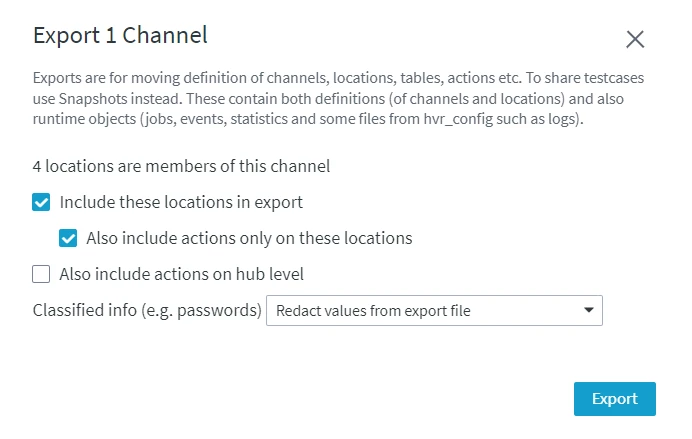
b. In the Export Channel dialog, if required, include the locations and actions contained in the channel in the exported file.
c. In case locations are included in the export file, choose the way the classified data related to the locations will be exported. For more information, see section Exporting Channel Definition.
c. Click Export and save the file.
{% /tab %}
{% tab label="CLI" %}
Use command dssdefinitionexport to export the channel definition. For example, the following command exports channel mychannel with its locations and actions to the chn_export file.
dssdefinitionexport -c mychannel -m -a myhub chn_exportFor more information about all options of the command, see page [**dssdefinitionexport**](/docs/dss6-command-line-interface-command-reference-dssdefinitionexport).By default, classified data is exported obfuscated. You can specify how to export the classified data using option -V of command dssdefinitionexport.
{% /tab %} {% /tabs %}-
In production, import the channel to a hub.
{% tabs %}
{% tab label="UI" %}
a. On the Channels page, click the More Options icon
and select Import Channel Definition.b. Browse for the exported file and click Open. The Import Summary dialog shows the details of the import.
c. Click Continue.
If the channel was exported with location property values encrypted with single-use transport key, a warning dialog will be displayed prompting you to enter the appropriate transport key. For more information, see section Importing Channel With Encrypted Data. If the channel was exported with redacted location property values, a warning dialog will be displayed prompting you to proceed with importing the redacted values. For more information, see section Importing Channel With Redacted Data.
{% /tab %}

{% tab label="CLI" %}

Use command **dssdefinitionimport** to import the channel definition to the hub. For example, the following command adds a channel supplied in the **chn_export** file to the hub.

```plaintext
dssdefinitionimport myhub chn_export
```

<div class="callout callout-important">
If the channel was exported with location property values encrypted with a single-use transport key, a warning will be displayed prompting you to enter the appropriate transport key. If the channel was exported with redacted location property values, a warning will be displayed saying that the corresponding location properties (e.g. Database_Password) contain redacted values. For more information, see option -V on page dssdefinitionexport.
-
{% /tab %}


{% /tabs %}
-
In production, activate replication for the imported channel.
{% tabs %}
{% tab label="UI" %}
a. On the Channel Details page, click Activate Replication at the top-right menu.
b. In the Activate Replication dialog, leave all the options selected by default.
c. Click Activate.
For more information about all activation options, see page Activating Replication.
{% /tab %}
{% tab label="CLI" %}
Use command dssactivate to activate replication in the channel. For example, the following command activates replication for channel mychannel.
dssactivate -J cap -J integ myhub mychannelFor more information about all options of the command, see page dssactivate.
{% /tab %}
{% /tabs %}