Managed Secrets - DSS 6 | Data Source Solutions Documentation
Documentation: Managed Secrets - DSS 6 | Data Source Solutions Documentation
Managed Secrets
<b>Since</b> v6.1.5/0
The 'Managed Secrets' feature offers a secure and efficient method for handling secrets such as passwords, key IDs, and secret keys in Data Source Solutions DSS. By utilizing an external password manager and the dssmanagedpassword script, you can keep secrets in a safe environment while ensuring that DSS always has access to the latest password. The dssmanagedpassword script is user-created and facilitates interaction with the external password manager. Instead of directly entering the actual secret in the User Interface (UI), users can provide a token. This token identifies the secret stored in an external password manager. When DSS needs the secret, it communicates with the password manager via the dssmanagedpassword script, accepting the token to retrieve the current secret.
This approach enhances security by keeping secrets in a secure environment external to DSS. Additionally, it eliminates the need for manual intervention during password rotations. DSS automatically receives the latest password from the password manager based on the stored token.
Configuration to Enable Managed Secrets
To enable and use this feature:
- Create a directory named authentication in DSS_CONFIG/plugin/.
- Create a script file named dssmanagedpassword (for Linux/Unix) or dssmanagedpassword.bat (for Windows, supported since 6.2.0/0) in the DSS_CONFIG/plugin/authentication directory. This script should contain the logic to retrieve passwords from an external password manager using the token as an input argument.3. Log in to DSS UI or refresh the UI window (if already open).
The DSS_HOME/plugin_examples/authentication directory contains example script files - dssmanagedpassword (for Linux/Unix) and dssmanagedpassword.bat (for Windows). The usage instructions are included within these files.
When DSS detects the dssmanagedpassword script in the DSS_CONFIG/plugin/authentication directory, the hub server property Hub_Server_Password_Manager_Configured is automatically set to true and option USE TOKEN INSTEAD is displayed in all UI fields designated for entering secrets.
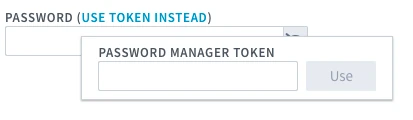
To use managed secrets in the web user interface (UI), click USE TOKEN INSTEAD option and enter the token in the PASSWORD MANAGER TOKEN field. Click Use and then click Ok to confirm. This informs DSS to fetch the secrets from the external password manager when needed, based on the tokens stored in the repository.
To use managed secrets in the command line interface (CLI), execute the dsscrypt command with -m option along with the token.
dsscrypt -m <em>token</em>The command will output the encrypted secret in the
!{m:<em>encryptedtext</em>}!format, which can then be used in the location creation commands dsslocationconfig or dssdefinitionimport.