Locations - DSS 6 | Data Source Solutions Documentation
Documentation: Locations - DSS 6 | Data Source Solutions Documentation
Locations
This section describes and illustrates how to create, view, and manage locations. Data Source Solutions DSS supports over 30 types of locations for replicating data between them. Certain locations can serve as both source and target locations, some can be source-only or target-only locations. For complete information on the capabilities supported on each location type, see section Capabilities.
The Locations page displays a list of all locations in all channels and various options to manage locations.
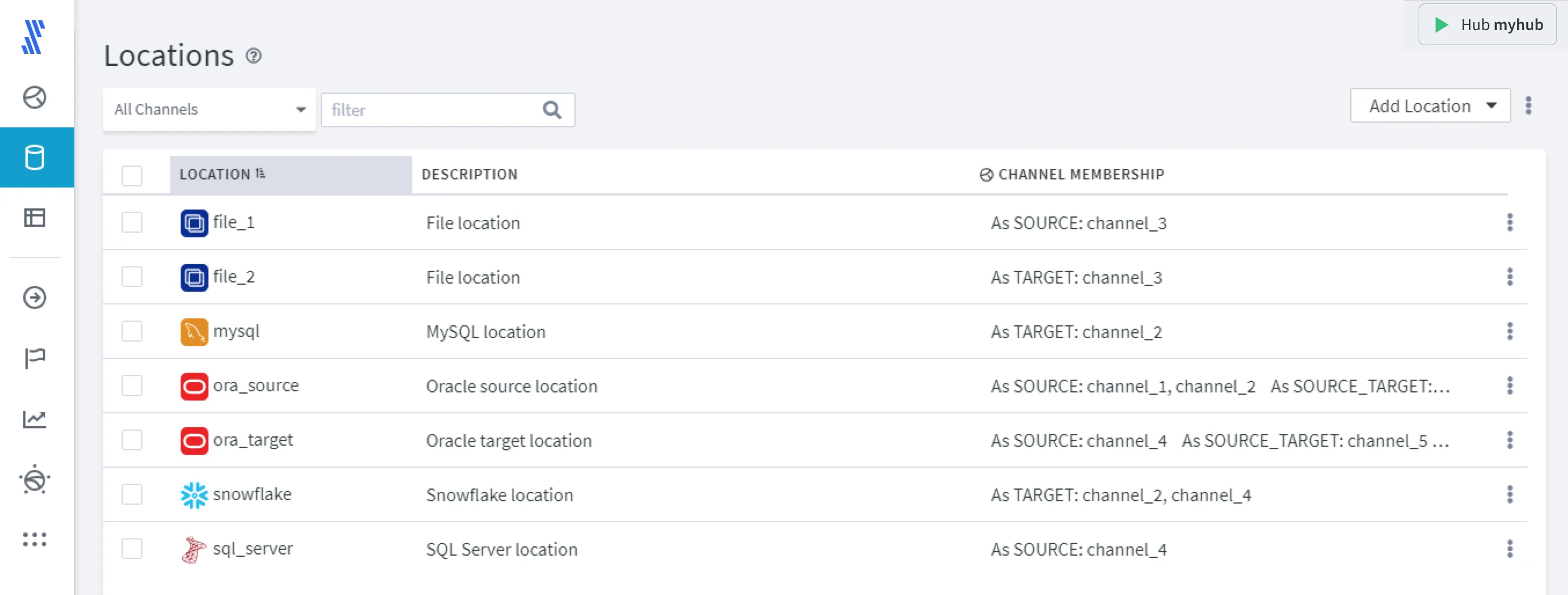
The Locations page displays the following information about locations:
| Field | Description |
|---|---|
| LOCATION | Indicates the name of the locations and an icon displaying a location type. Location type is a technology from/to which data is replicated. The location types include databases, file systems, Software as a Service (SaaS) packages, and data streaming technologies like Kafka.Each location name is a link to its Location Details page. |
| DESCRIPTION | Indicates the description of locations (it is optionally specified during location creation). |
| CHANNEL MEMBERSHIP | Indicates the channel(s) name to which the location belongs either as a source (e.g. As SOURCE: channel_3) or target location (As TARGET: channel_2). A location may belong to multiple channels (e.g. As SOURCE: channel_1, channel_2). In case of multi-directional replication, a location may be both source and target (e.g. As SOURCE_TARGET: channel_5). Each channel name is a link to its Channel Details page. |
Filtering Locations
By default, the page displays all locations available in all channels related to a current hub. You can easily find the locations you need using one of the following filters.
- The Channels selector allows you to display information only for the locations added to a specific channel. For this, click All Channels and enter a channel name or select one from the drop-down list. After you selected a channel, its name will be pinned to the Channels selector.
- The Search field allows you to search location(s) by name. The locations get filtered as you type.
Managing Locations
The following options to manage locations are available at the top right menu, as well as under the More Options menu  .
.
To select multiple locations in one go, select the first location, hold the Shift key and then select the last location - all locations in between the first and the last will be selected.
-
Add Location
Create a new location or add an existing location.
-
Delete Locations
Delete a location(s) at the hub level or at a channel level. -
Change Location Group
Change the location group for the selected location(s) in a channel. -
Manage Location Group
Add new location groups, rename or remove the existing ones. -
Import and Export Location Definitions
Import and one or more location definition from/to a JSON file stored on your system. -
View Actions
View actions defined on a specific location(s) in the Actions List Drawer. -
Activate Replication
Set up or reset replication components in a channel. -
Deactivate Replication
Stop replication and drop replication components in the channel. -
Refresh Data
Load data selected from a source location to a target location. -
Compare Data
Compare data in source and target locations. -
Create/Alter Target Tables
Create tables that are missing in a target location or alter/recreate the existing tables. -
Show Start Page
Open the Start page, click the More Options icon at the top right and select Show Start Page. This is a landing page that opens when you first access the web user interface. This page offers a starting point for new users that helps them build a new channel in Data Source Solutions DSS.
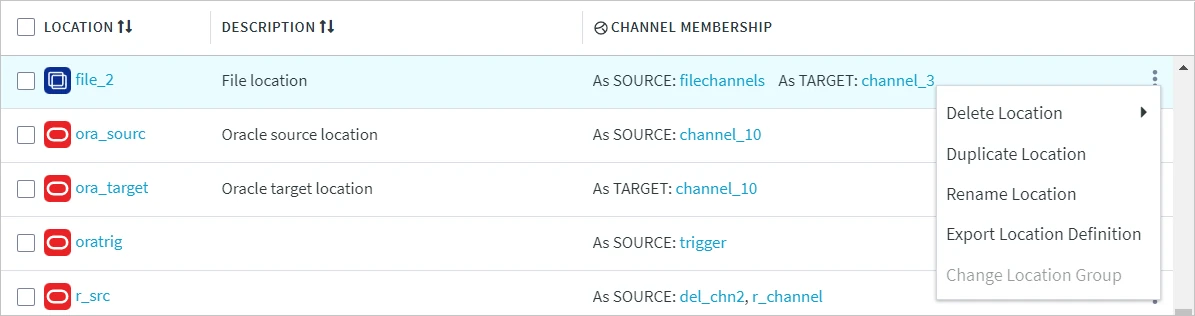
Each location also has its own More Options menu with the following set of options:
- Delete Location
- Duplicate Location
- Rename Location
- Export Location Definitions
- Change Location Group
Adding Existing Locations
To add an existing location to a channel:
- In the Channels selector, select the channel to add the location to.
- At the top right menu, click Add Locations ▶ Add Existing Locations.
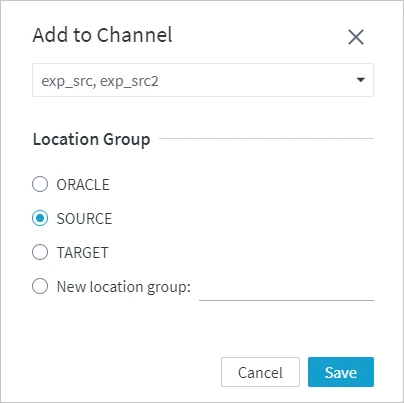
- In the Add to Channel dialog, select the required location(s) from the drop-down list and click Confirm.
- Select the location group for the location(s) or create a new group by entering its name in the New location group field.
- Click Save.