Location Details - DSS 6 | Data Source Solutions Documentation
Documentation: Location Details - DSS 6 | Data Source Solutions Documentation
Location Details
The Location Details page provides detailed information about a specific location and various options to manage the location. The information displayed on this page are grouped into the following panes:
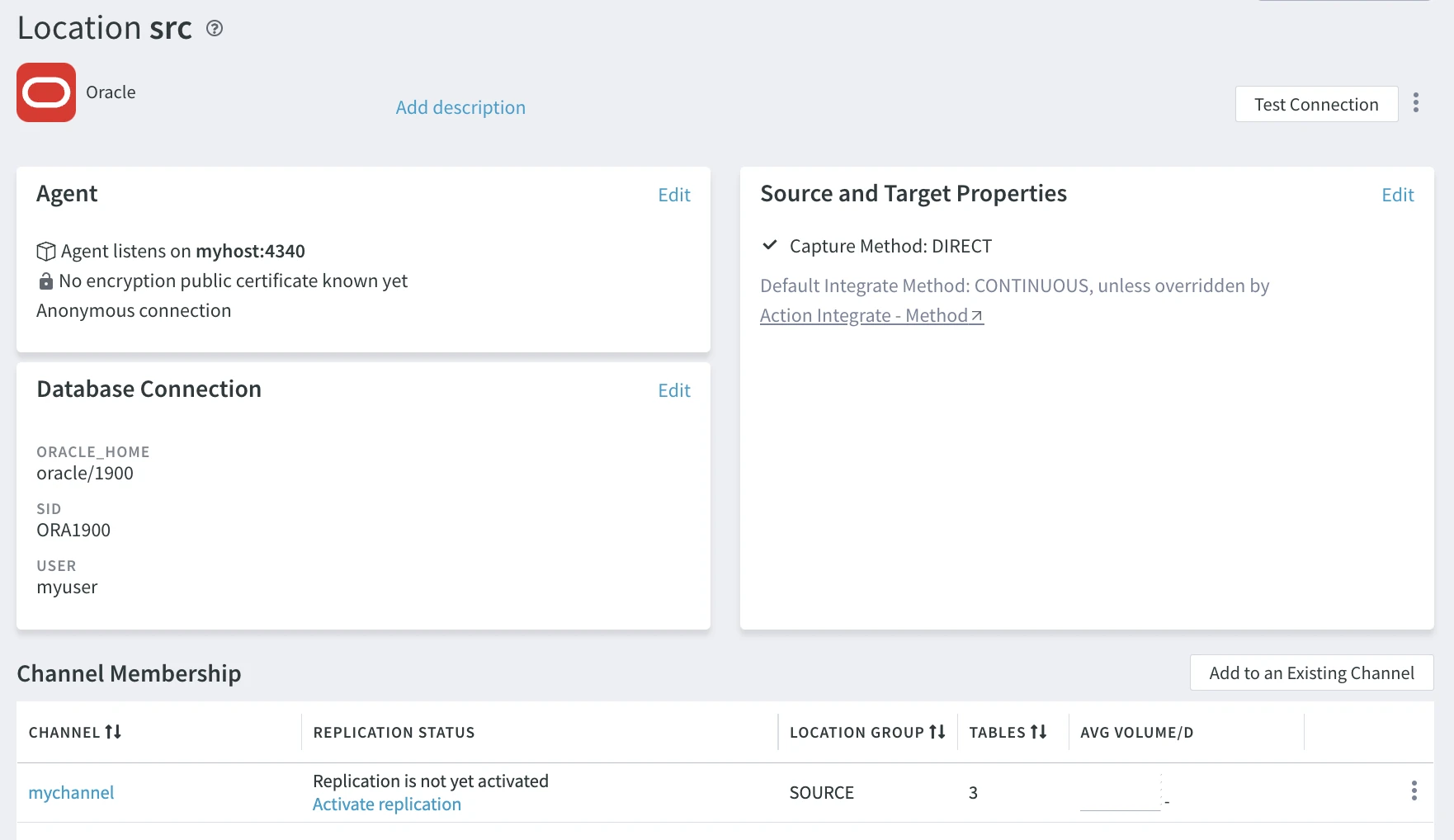
Agent
The Agent pane displays connection information for the DSS Agent service, if configured for the current location.
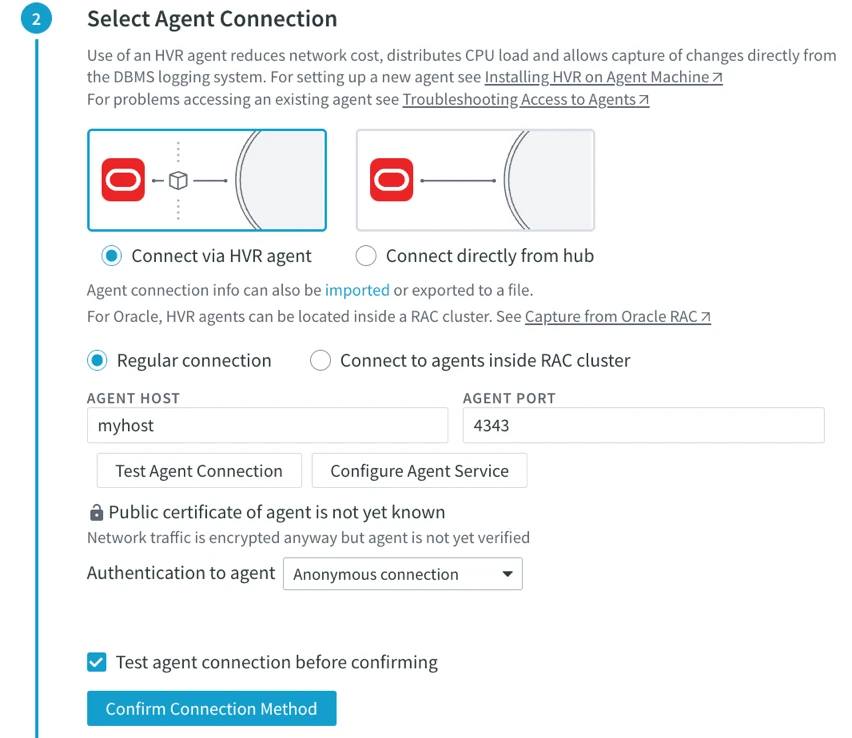
Click Edit to open the Agent dialog where you can modify the agent's connection information or set up a new connection to an agent service. For instructions on how to set the agent connection parameters, see section Select Agent Connection in Creating Location.
In the Agent dialog, you can also reconfigure the agent service by clicking the Configure Agent Service button, which will open the Agent Service Configuration dialog. For instructions on how to configure the agent service, see section Configuring DSS Agent from Browser.
If the configuration for an existing agent service is modified/updated, ensure to reflect those changes in all locations that use this agent service. For example, if the password of an agent user is updated, then that user's password must be updated in all locations that use this agent service.
Database Connection
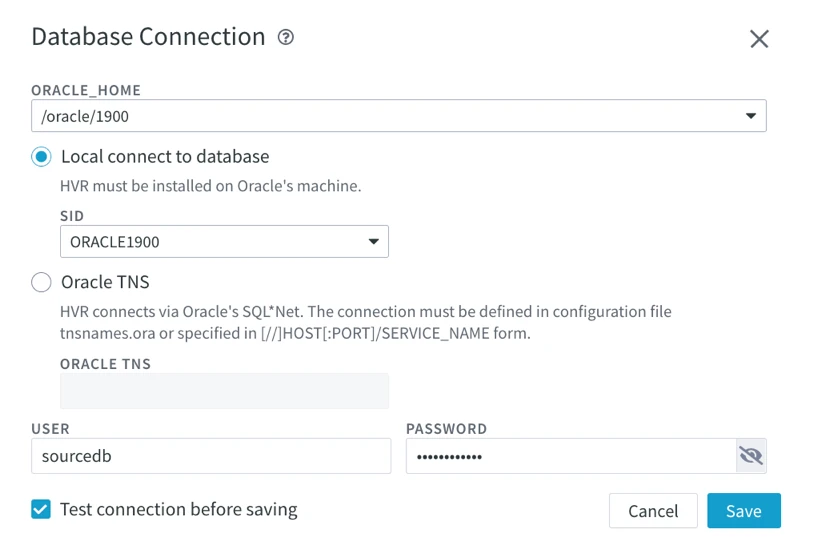
The Database Connection pane displays connection details for the current location, which can be a database or file location. For more information on setting up a connection to each location type, see Location Connection.
For file locations, like Azure DLS, the pane will be named File Connection.
To modify location connection details:
-
On the Database Connection pane, click Edit.
-
In the Database Connection dialog, make the necessary changes.
-
Click Save.
Fields in the Database Connection dialog will differ depending on the location type you are connected to.
Source and Target Properties
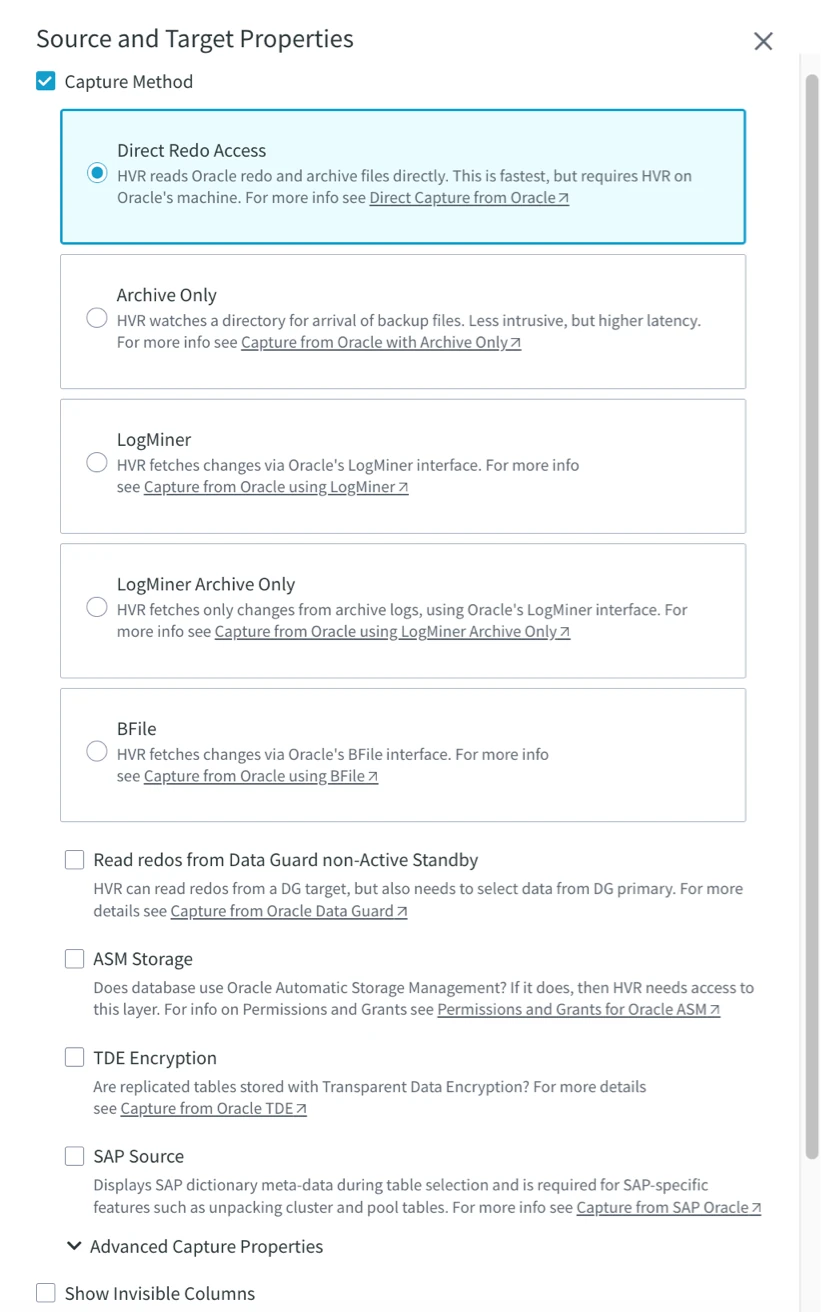
The Source and Target Properties pane displays the location properties defined for the current location. For more information about all location properties available in Data Source Solutions DSS, see section Location Properties.
To modify location properties:
-
On the Source and Target Properties pane, click Edit.
-
In the Source and Target Properties dialog, make the necessary changes.
-
Click Save.
Channel Membership
The Channel Membership pane displays the following information about the channel(s) containing the location.
Field Description CHANNEL Channel to which the location belongs. REPLICATION STATUS Defines whether the replication is currently activated or not yet activated, whether jobs are running. Here you can activate replication or replication components that are not activated. LOCATION GROUP Name of the location group to which the location belongs. TABLES Number of tables in the channel. CHANGES Number of capture or integrate changes per the time interval selected on the Channels or Jobs pages. The More options menu
 associated with a channel provides additional options to manage the location within that channel:
- Change Location Group
Change the location group of the location in the channel. You can either pick one of the existing location groups or create a new one. - Delete from Channel
Delete the location from the channel. - Activate replication
Start replication in the channel. Set or reset replication components as required. - Deactivate replication
Stop all replication jobs in the channel. This will drop the replication components created for the channel. - Compare Data
Compare data in the location between source and target. - Refresh Data
Copy data in the location from source to target. - Create/Alter Target Table
Create tables that are missing in a target location or alter/recreate the existing tables.

Adding Location to an Existing Channel
To add the location to an existing channel:
- On the Channel Membership pane, click Add to an Existing Channel.
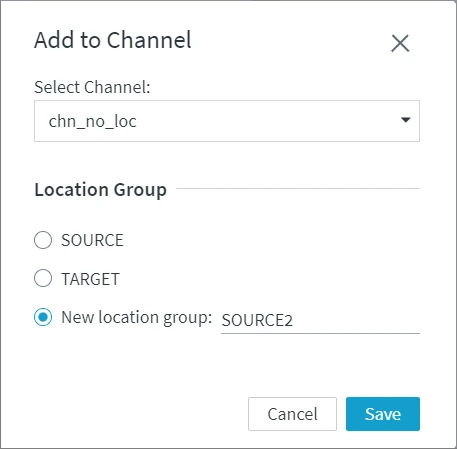
- In the Add to Channel dialog, select a required channel from the drop-down list.
- Select the location group for the location or add the location to a new location group by entering the group name in the New location group field.
- Click Save.
Managing Location
The following options to manage a location are available at the top-right menu, as well as under the More options menu
.- Test Connection
Verify the location connection status. - Export Location Definition
Export the location definition into a JSON file - Export Agent Connection
Export Agent connection details. - Import Agent Connection
Import Agent connection details. - View Actions
View actions defined in a channel in the Actions panel. - All Location Properties
View, modify, add, and delete the properties of the location. - Duplicate Location
Create a copy of the current location. - Delete Location from Hub
Delete the location from the hub. - Rename Location
Rename the location.
-