Jobs - DSS 6 | Data Source Solutions Documentation
Documentation: Jobs - DSS 6 | Data Source Solutions Documentation
Jobs
This section describes and illustrates how to monitor and manage jobs. A job is a process that performs a certain task, such as capturing changes, refreshing data, integrating changes, comparing data. At any moment a job has a certain state. Jobs are managed by the Scheduler. Jobs running through the Scheduler have their output appended to the hub log, and in case of a job failure, the hub will automatically retry the job.

The Jobs page displays a list of all jobs managed by a hub, as well as various options to manage jobs. It also displays the following information about each job:
| Field | Description |
|---|---|
| TYPE | A job type (Activate, Capture, Refresh, Integrate, Compare, Statistics gather) |
| CHANNEL | The name of a channel, to which a job belongs. |
| LOCATIONS | The name of a location, to which a job belongs. |
| STATE | A job state:
|
| RECENT ERRORS | The time when the most recent error occurred. If there are any job errors or warnings, the following notification is displayed at the top of the page. Click the View Scheduler Log button to open the Log Viewer dialog displaying information about all the job errors on the hub. Click the Clear All button to hide all the current errors and warnings from the page. After clearing the errors and warnings, only new ones will be displayed in the RECENT ERRORS column from now on.
You can hide a specific error by clicking the cross icon next to it. 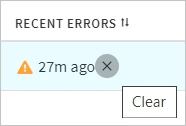 |
| LATENCY | The time taken for a transaction committed on a source system to be replicated (captured and integrated) to a target system. This value allows you to analyze the delay in data replication. The graph is a link to the Statistics page of the corresponding channel. |
| VOLUME | An average number of integrated changes per the time range selected in the Graph Range filter. |
| CHANGES QUEUED | The number of captured changes queued on a hub to be integrated into a target location. |
| CAPTURE REWIND | Capture rewind shows you which period the job covered/captured since the last activation. It is only available for capture jobs. For example, if capture rewind is 6 days, that means that this capture job captured all changes that happened in the last 6 days. For a frozen hub, this time interval ends when the hub was frozen. |

Filtering Jobs
By default, the page displays data about all jobs in the current hub. The top panel with multiple filtering options will help you to narrow down the data to view only the information you need.
-
Channels selector allows you to display only jobs related to a selected channel.
-
Locations selector allows you to display only jobs related to a selected location
-
Type selector allows you to display only jobs of a selected type(s).
-
Graph Range selector allows you to select the time range for the graphs displayed in the Latency and Changes Processed columns. The graphs will automatically update to show only that chosen period of time. Note that the Graph Range selector is not displayed when the two columns (LATENCY and CHANGES PROCESSED) are set to be hidden in the Columns menu.
-
Search field provides a full-text search across all records in the Jobs table to quickly find all occurrences of a word/number you type.
The panel also shows the total number of jobs currently displayed on the page including inactive jobs (jobs that have no events to process and no pending errors).

Managing Jobs
The following options to manage jobs are available at the top-right menu, as well as under the More options menu  .
.
To select multiple jobs in one go, select the first job, hold the Shift key and then select the last job - all jobs in between the first and the last will be selected.
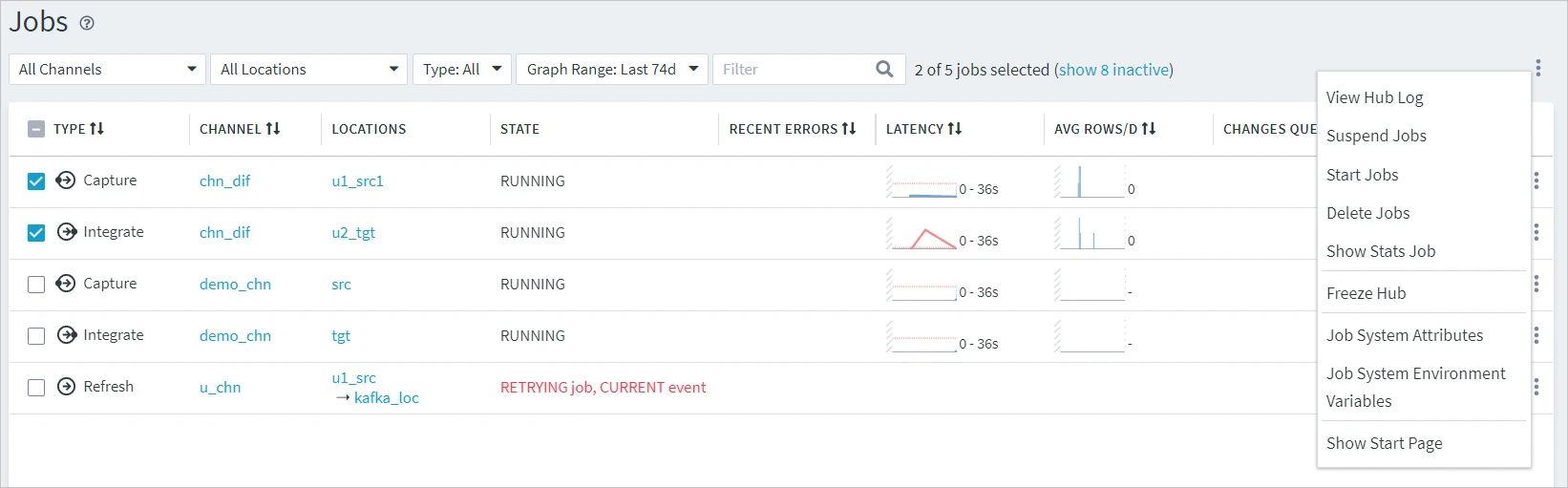
| Option | Description |
|---|---|
| View Hub Log | View the runtime information and errors related to the entire hub in the Log Viewer dialog. |
Suspend Jobs |
Suspend a job or multiple jobs at once.
|
Start Jobs |
Start a job or multiple jobs at once. The job's current status will change to RUNNING. |
Delete Jobs |
Delete a job or multiple jobs at once. |
Show Stats Job |
Show the Stats Gathering job in the list of jobs. |
Hide Stats Job (unless errors) |
Hide the Stats Gathering job from the list of jobs unless there are errors on the hub. This option is displayed when the Show Stats Job option is enabled. |
Freeze Hub |
This will stop the Scheduler and stop all the jobs running on the hub. For more information, see Hub States. |
Job System Attributes |
Set a job attribute for SYSTEM job group. This opens the Job System Attributes dialog, where you can set default attributes for all jobs in the hub. 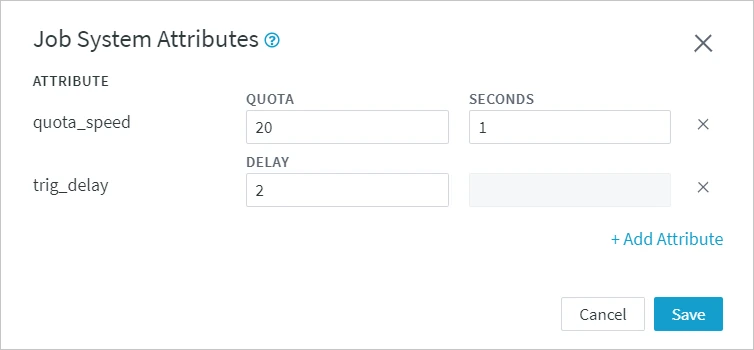 |
Job System Environment Variables |
Set an environment variable for SYSTEM job group. This opens the Job System Environment Variables dialog, where you can set default environment variables for all jobs in the hub. 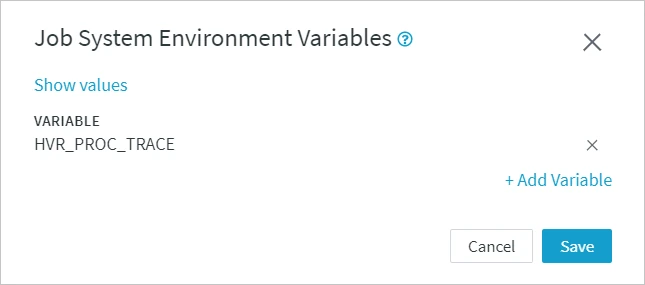 |
Show Start Page |
Open the Start Page. This is a landing page that opens when you first access DSS web user interface. This page offers a starting point for new users that helps them build up a channel in the DSS Hub. |

Every job has its own View Log button that opens the Log Viewer dialog showing the job's runtime information and errors, and also the More Options menu allowing you to manage every job separately.

| Option | Description |
|---|---|
| Start Job | Changes the job state to RUNNING. |
Suspend/Unsuspend Jobs |
Suspend or unsuspend the job.
|
| Delete Job | Delete a job from the channel. |
| Go to Event | Open the Event Details page for the recent event associated with the job (applies only to the Activate, Compare, and Refresh jobs if they have DONE or RUNNING state). |
| Cancel Event | If the event is executed by the corresponding job, this execution is stopped. The event is canceled by setting the event status to CANCELED. Only events in the ACTIVE state can be canceled (e.g. activate, refresh or compare events). A canceled event will not be executed anymore. |
| Job Attributes | This opens the Job Attributes dialog, where you can set attributes for a specific job. |
| Environment Variables | This opens the Job Environment Variables dialog, where you can set environment variables for a specific job. |
| New Refresh | Start the refresh job once again. This applies only to a Refresh job. |
| New Compare | Start the compare job once again. This applies only to a Compare job. |