Installing DSS Agent on Windows using Zip File - DSS 6 | Data Source Solutions Documentation
Documentation: Installing DSS Agent on Windows using Zip File - DSS 6 | Data Source Solutions Documentation
Installing DSS Agent on Windows using Zip File
This section describes the requirements and step-by-step instruction on how to install DSS Agent on Windows using zip file and the initial system configuration.
For installing DSS Agent on Windows using installer, see Installing DSS Agent on Windows using Installer.
For installing DSS Hub on Windows using installer or zip file, see Installing DSS Hub on Windows using Installer or Installing DSS Hub on Windows using Zip File respectively.
The installation file for Windows is available for download in .exe and .zip format. The compressed file (.zip) distribution is normally used as an alternative for the Windows executable based (.exe) distribution. Also, the installation steps are different on both formats.
Requirements
Following are the prerequisites for installing DSS Agent on Windows:
-
Sufficient disk space
Ensure sufficient disk space is available on the machine where this installation will be performed. For more information, see Agent Disk Requirements. -
Compatibility
Check whether the DSS Agent version is compatible with the operating system and DBMS. Refer to the relevant Supported Platforms section or read the COMPATIBILITY section in the release notes (available under the Downloads tab in the Data Source Solutions dashboard). -
Installation file
DSS Agent installation file for Windows (e.g. datasourcesolutions-6.1.0_21-hub_and_agent-windows-x64-64bit_ga_patch.zip). This file can be downloaded from the Downloads tab in the Data Source Solutions dashboard. For more information, see Downloading DSS. -
Access to source and target locations
For the DSS Agent to access a source or target database directly, the database connectivity (e.g. ODBC drivers) must be installed on the agent machine. For more information, see Source and Target Requirements. -
Windows user account privileges:
-
Elevated user account privilege is required for running the DSS Agent executable/installer. Normally this means the user must supply an administrator password interactively.
-
The user account (e.g. datasourcesolutions) which will operate the DSS Agent must have Log on as a service policy enabled.
User account policies can be managed using the Windows Local Security Policy console (accessible from Control Panel ▶ Administrative Tools). The shortcut command to access this console is secpol.msc. For more information about enabling this policy, refer to the Microsoft documentation.
Install Steps
Perform the following steps in the user account that will be used for operating the DSS Agent:
-
Configure the environment variables DSS_HOME, DSS_CONFIG, and DSS_TMP for your operating system. Each of these environment variables should be pointed to the installation directories - dss_home, dss_config, and dss_tmp:
Environment variables set using setx command are available in the future command windows only and the environment variables set using set command are available in the current command window only.
```plaintext
setx DSS_HOME C:\datasourcesolutions\dss_home
```
```plaintext
setx DSS_CONFIG C:\datasourcesolutions\dss_config
```
```plaintext
setx DSS_TMP C:\datasourcesolutions\dss_tmp
```
```plaintext
set DSS_HOME=C:\datasourcesolutions\dss_home
```
```plaintext
set DSS_CONFIG=C:\datasourcesolutions\dss_config
```
```plaintext
set DSS_TMP=C:\datasourcesolutions\dss_tmp
```

Also, add the executable directory path (e.g **C:\\datasourcesolutions\\dss_home\\bin**) to the environment variable **PATH**.

```plaintext
setx PATH "%PATH%C:\datasourcesolutions\dss_home\bin"
```
```plaintext
set PATH=%PATH%;C:\datasourcesolutions\dss_home\bin
```

<details><summary>Alternatively, environment variables can be configured using Windows GUI.</summary>

1.  Navigate to **Control Panel ▶ System and Security ▶ System ▶** **Advanced system settings**

    <div class="callout callout-note">
Alternatively, use the command sysdm.cpl to open System Properties.
-
-
2. In **Advanced** tab, click **Environment Variables...**
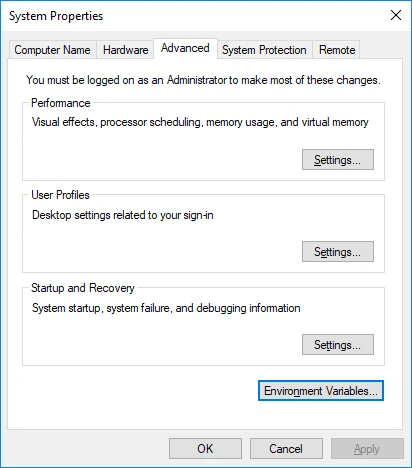
3. In the section **System variables** or **User Variables for** *user_name*, click **New**.
1. Enter **Variable name** (e.g, **DSS_HOME**) and **Variable value** (e.g, **C:\\dss\\dss_home**).
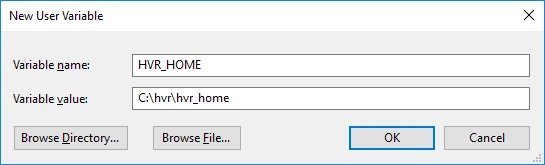
2. Click **OK**.
3. Repeated the above steps for each environment variable.
4. Add the executable directory path (e.g **C:\\datasourcesolutions\\dss_home\\bin**) to the environment variable **Path**.
1. In the section **System variables** or **User Variables for** *user_name*, from the list of variables, select **Path** and click **Edit...**.
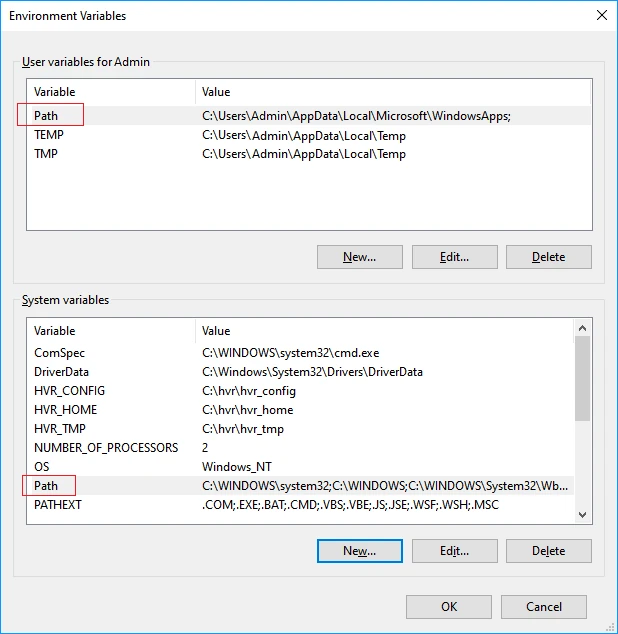
2. Click **New** and enter the path for the executable.
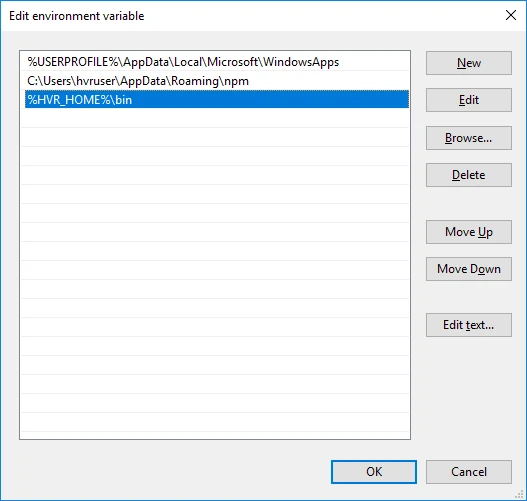
3. Click **OK**.
</details>
-
Create the installation directory - dss_home (e.g. C:\datasourcesolutions\dss_home):
md %DSS_HOME%- other directories (dss_config and dss_tmp) will be automatically created as needed.
- dss_home is regarded a read-only directory. The user files saved in this directory will be moved to a backup directory when executing the DSS Agent for the first time or after an upgrade.
-
Uncompress (unzip) the installation file (e.g. datasourcesolutions-6.1.0_21-hub_and_agent-windows-x64-64bit_ga_patch.zip) into the dss_home directory:
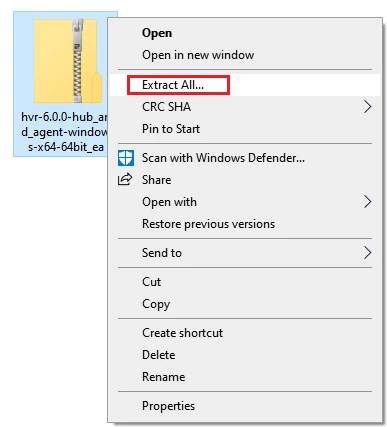
cd %DSS_HOME%C:\datasourcesolutions\dss_home>tar -xf C:\Users\Admin\Downloads\datasourcesolutions-6.1.0_21-hub_and_agent-windows-x64-64bit_ga_patch.zipAlternatively, files can be uncompressed using the 'Extract All' option in Windows GUI.
-
Start the dssagentlistener service on a TCP port (on which the DSS Agent will listen for connection request):
dssagentlistener -acs 4343Unlike the installer-based installation, the ZIP file installation does not automatically configure the DSS Agent Listener process to start after a system reboot. You must manually configure auto-start for this process. For instructions, see Configuring DSS Auto-Start on Windows.
-
Configure the DSS Agent, which requires setting its network security and authentication properties. This can be done from a web browser (UI) while creating a location (provided the agent is in 'setup mode') or from the command-line (CLI).
- For configuring the DSS Agent from browser, see Configuring DSS Agent from Browser.
- For configuring the DSS Agent from CLI, see Configuring DSS Agent from CLI.
By default, after starting the DSS Agent for the first time, it will be available in 'setup mode' for the next 60 minutes. In 'setup mode', you can configure the DSS Agent remotely from the hub machine using browser or CLI. When the 'setup mode' expires after 60 minutes, the agent can not be configured remotely. If you want to re-initiate the DSS Agent 'setup mode' later, use the command dssagentconfig directly on the agent machine. For example, to enable 'setup mode' for the next 1 hour, execute:
```plaintext
dssagentconfig Setup_Mode_Timed_Until=now+1h
```
Testing Connection to a DSS Agent
To test the connection to the DSS Agent, execute the command dssagenttest on the machine from which you are connecting to the agent. You can also check whether dssagentlistener is running by executing the command dssagenttest directly on the DSS Agent machine.
Examples for testing the connection to a DSS Agent
Example 1: Check connection to a DSS Agent
You can check the connection to the DSS Agent installed/running on a remote machine with username and password authentication enabled. Execute the following command on the hub machine or on the machine from which you are connecting to the DSS Agent:
dssagenttest -L myuser/mypassword mynode 4343Sample output in Linux with successful authentication and also indicating that the DSS Agent Listener is running:
dssagenttest: Data Source Solutions 6.1.0/21 (windows-x64-64bit)
dssagenttest: Agent version 6.1.0/21.
dssagenttest: Authentication with username and password enabled.
dssagenttest: Authentication successful.
dssagenttest: Finished. (elapsed=0.34s)
Example 2: Check whether dssagentlistener is running
After installing and starting the DSS Agent Listener service, you can verify whether the dssagentlistener is running on the agent machine. Execute the following command on the agent machine:
dssagenttest mynode 4343Sample output in Windows with successful authentication indicating that the DSS Agent Listener is running:
dssagenttest: Data Source Solutions 6.1.0/21 (windows-x64-64bit)
dssagenttest: Agent version 6.1.0/21.
dssagenttest: Authentication with username and password enabled.
dssagenttest: Authentication successful.
dssagenttest: Finished. (elapsed=0.18s)
See Also
-
- other directories (dss_config and dss_tmp) will be automatically created as needed.