Troubleshooting Access to Hub System - DSS 6 | Data Source Solutions Documentation
Documentation: Troubleshooting Access to Hub System - DSS 6 | Data Source Solutions Documentation
Troubleshooting Hub System Access Issues
This section covers various access challenges you may encounter with the DSS Hub System and provides workarounds to resolve them.
Direct Command Line Interface (CLI) access is required - all commands listed on this page should be executed directly on the machine where the DSS Hub System is installed. Only a user who has install privileges on the machine (e.g. system administrator) may execute these commands.
Unable to Log in
Issue
User is not able to log in because of forgotten/wrong username or password. In the DSS UI, the following message is displayed in this scenario:

Resolution
To resolve this problem, you can use either of the following methods:
Reset User Password
Reset User Password
A user's password can be reset from DSS UI or CLI.
{% tabs %}
{% tab label="UI" %}
To reset a user's password from DSS UI, perform the following step as a user with SysAdmin permission:
- On the System page, select Users tab.
- Click More Options menu
 of the user for whom the password needs to be reset and select Show Preferences.

- Click Reset Password.

{% /tab %}
{% tab label="CLI" %} To reset a user's password from CLI, use the command dssuserconfig:
dssuserconfig -r <em>username</em>
To list all existing users, execute command dssuserconfig without any options.
{% /tab %}
{% /tabs %}
Create New User from CLI
Create New User from CLI
Create a new user and assign the required privilege.
-
Create a new user using the command dssuserconfig:
dssuserconfig -c <em>new_user</em>To set the authentication mechanism for this user, supply option -A. If option -A is not supplied, then by default the user is created with local authentication.
-
Grant the required permission to the new user using the command dssreposconfig:
For example, to grant SysAdmin permission to the new user named myuser:
dssreposconfig -A user:myuser=SysAdminSince 6.1.5/2, the following command should be used, as
-Aoption is deprecated.dssreposconfig User_Access.myuser.sysadmin=true
-
Reset User Password Using Setup Mode
Reset User Password Using Setup Mode
Initiate the DSS Hub System setup mode and then reset the user's password from the System Setup page.
Initiating setup mode for a DSS Hub System with live hub(s) will stop all replication activities.
In setup mode, the DSS Hub Server will be stopped, which means all replication activities will be terminated.
-
Initiate the setup mode using the command dsshubserverconfig:
dsshubserverconfig Setup_Mode=true -
Launch DSS UI in a browser and perform the following steps:
If the DSS UI is already open in a browser, just relaunch/refresh the page.
1. On the [**System Setup**](/docs/dss6-install-and-upgrade-configure-hub-setting-up-hub-from-browser) page, click **Proceed with System Setup**. 2. In the section **Complete the System Setup**, click **More Options** menu  of the user (for whom the password needs to be reset) and select **Reset Password**.  3. Click **Complete System Setup** to save the changes and exit setup mode.
Hub User Has Insufficient Privileges
Issue
The hub user does not have sufficient privileges/permissions to perform certain operations (e.g. Refresh, Compare) on a hub.
Resolution
To resolve this problem, you can use either of the following methods:
Grant Permission to User
Grant Permission to User
A user's permissions can be managed from DSS UI and CLI.
{% tabs %}
{% tab label="UI" %}
To manage a user's permissions from DSS UI, perform the following step as a user with SysAdmin or HubOwner permission:
- On the System page, select Permissions tab.
- Click Add Access.

- Select the User to be granted the permission.
- Select the required permission available under CURRENT HUB.

- Click Save.
{% /tab %}
{% tab label="CLI" %}
To manage a user's permissions from CLI, use the command dsshubconfig. For example, the following command will add or update the permissions for user myuser to be set as HubOwner on hub myhub:
dsshubconfig -A user:myuser=HubOwner myhub
Since 6.1.5/2, the following command should be used, as -A option is deprecated.
dsshubconfig User_Access.myuser.hubowner=true myhub
{% /tab %}
{% /tabs %}
Grant SysAdmin Permission Using Setup Mode
Grant SysAdmin Permission Using Setup Mode
Initiate the hub system setup mode and then grant the user SysAdmin permission from the System Setup page.
Initiating setup mode for a DSS Hub System with live hub(s) will stop all replication activities.
In setup mode, the DSS Hub Server will be stopped, which means all replication activities will be terminated.
-
Initiate the setup mode using the command dsshubserverconfig:
dsshubserverconfig Setup_Mode=true -
Launch DSS UI in a browser and perform the following steps:
If the DSS UI is already open in a browser, just relaunch/refresh the page.
1. On the [**System Setup**](/docs/dss6-install-and-upgrade-configure-hub-setting-up-hub-from-browser) page, click **Proceed with System Setup**. 2. In the section **Complete the System Setup**, click **More Options** menu of the user that require **SysAdmin** permission and select **Assign as SysAdmin**. 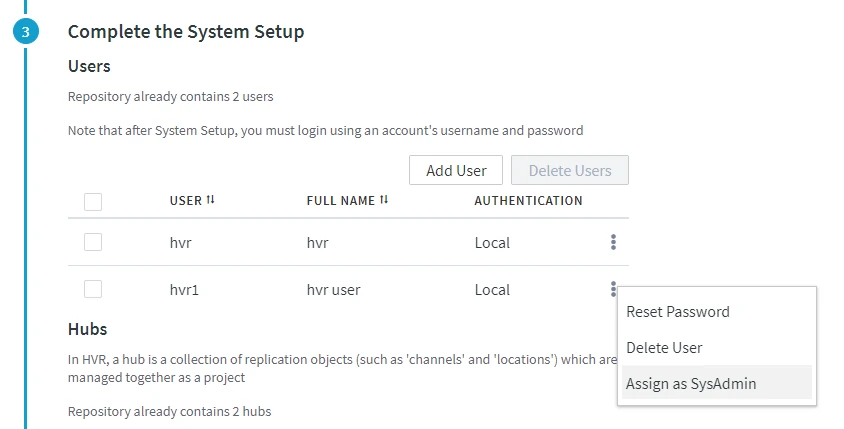 3. Click **Complete System Setup** to save the changes and exit setup mode.
Hub Server Repository Connectivity Error
Issue
The hub server is not able to connect to the hub repository due to a changed repository connection property (e.g. password for the repository database has changed).
Resolution
To resolve this problem, you can use either of the following methods:
Update Repository Properties Using Setup Mode
Update Repository Properties Using Setup Mode
Initiate the DSS Hub System setup mode and then reconfigure/update the hub repository connection properties from the System Setup page.
-
Initiate the setup mode using the command dsshubserverconfig:
dsshubserverconfig Setup_Mode=true -
Launch DSS UI in the browser and perform the following steps in System Setup page:
If the DSS UI is already open in a browser, just relaunch/refresh the page.
1.  On the [**System Setup**](/docs/dss6-install-and-upgrade-configure-hub-setting-up-hub-from-browser) page, click **Proceed with System Setup**.
2.  In the section **Connection to Repository Database**, click **Edit** to update the hub repository connection properties.
3.  Click **Complete System Setup** to save the changes and exit setup mode.
Update Repository Properties from CLI
Update Repository Properties from CLI
Reconfigure/update the hub repository connection properties directly from CLI using the command dsshubserverconfig:
dsshubserverconfig <em>hub_server_property</em>=<em>property_value</em>
For example, if the username and password for the repository database has changed, execute:
dsshubserverconfig Database_User=mynewrepodb Database_Password=mynewrepodbpassword