Events - DSS 6 | Data Source Solutions Documentation
Documentation: Events - DSS 6 | Data Source Solutions Documentation
Events
The event system maintains records for certain changes that a user makes in DSS Hub System. These records are called events, which are stored in the repository tables - DSS_EVENT and DSS_EVENT_RESULT. The event system allows for accurate tracking of events and provides better visibility of real-time activities in DSS Hub System.
The Events page displays the list of all events related to the current hub.
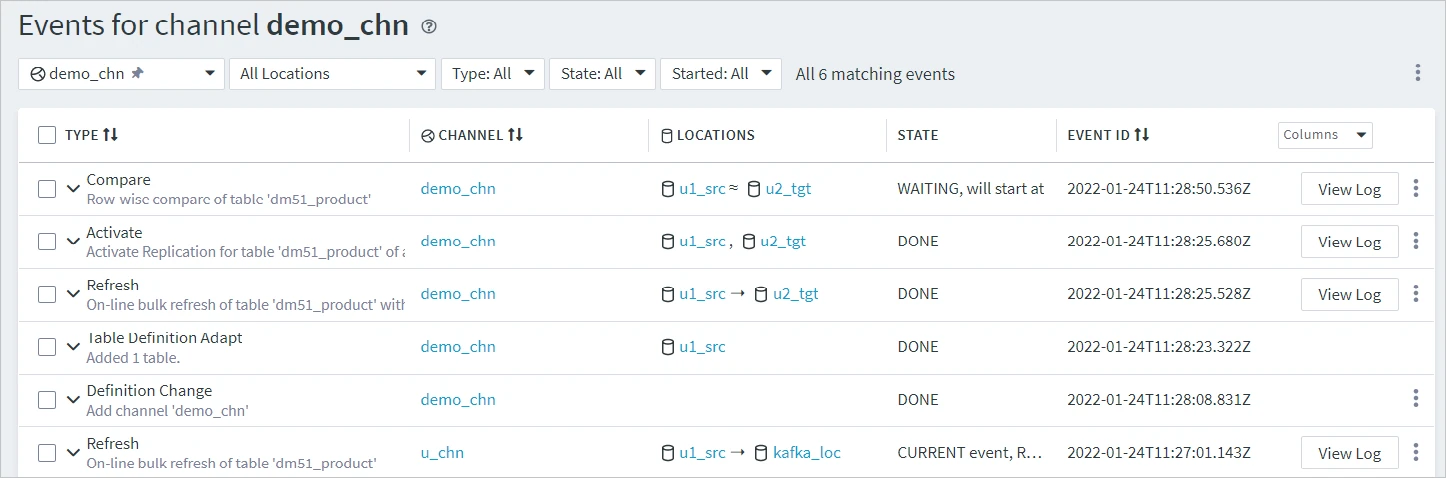
On this page, you can find the following information about events:
| Field | Description |
|---|---|
| TYPE | Event type. |
| CHANNEL | Name of channel associated with the event. |
| LOCATIONS | Name of location associated with the event. |
| STATE | Event state. The following event states are available:
|
| USER | User name associated with the event. This column is hidden by default. To display it, click Columns and select User. |
| EVENT ID | Timestamp indicating the start time of the event. |
| STARTED | Time when the event is started. This column is hidden by default. To display it, click Columns and select Started. |
| FINISHED | Time when the event is complete. This column is hidden by default. To display it, click Columns and select Finished. |
| SCHEDULE | Time at which the job is scheduled to run. |
| CREATED | Time when the event was created. |
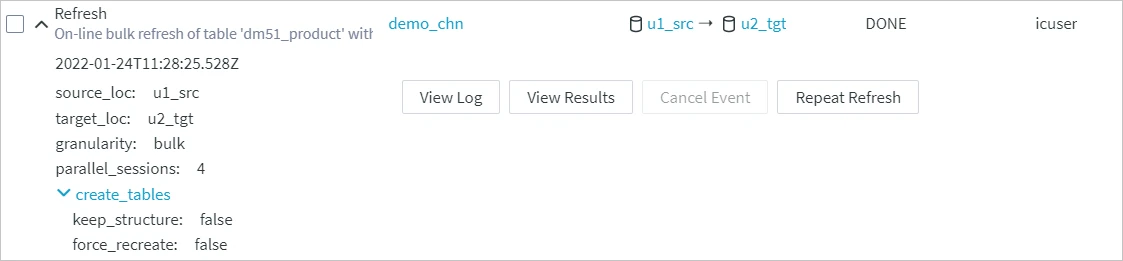
Clicking an event expands event details and certain options relevant to this particular event. For example, the expanded refresh event shows refresh details, such as source location, target location, refresh granularity, parallel sessions, and options to view the refresh log, view refresh results, cancel the refresh event while it is in progress, or repeat the refresh event.
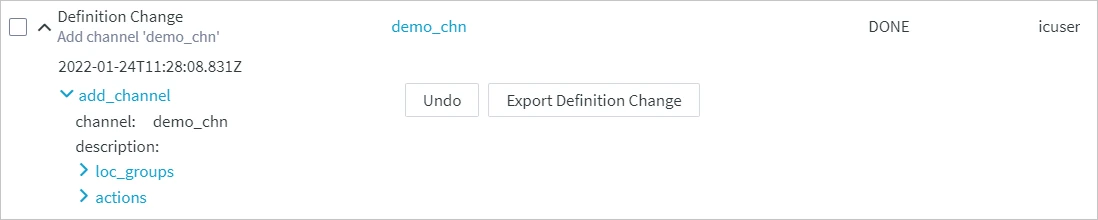
The expanded definition change event shows the event details, such as information about the added channel, and options to undo the change and export the definition change to a file. For more information, see section Importing and Exporting Definition Changes.
Filtering and Sorting Events
By default, the page displays all events related to the current hub. You can display only the required events using the Channels, Locations, Type, State, and Started filters. Next to these filters, is the total number of events currently displayed on the page.
The events can be sorted by columns Type, Channel, User, Event ID, Started, Finished, and Created. You can select the columns to be displayed or hidden on the page using the Columns drop-down menu on the right.
Importing and Exporting Definition Changes
Definition change is a type of the event when a change is made to an object (channel, location, location group, table, table group, action) on a hub. For example, a definition change may include adding/modifying/replacing/deleting a channel (location, location group, table, table group, action). You can import and export definition changes from the events that have the Definition Change type. These events indicate that certain changes have been made to channel, location or table definitions, such as a location was deleted or a column was added to a table, etc. You can export definition changes into a JSON file, which can be used later for import purposes.
To select multiple events in one go, select the first event, hold the Shift key and then select the last event - all events in between the first and the last will be selected.
Export Definition Changes
To export definition changes:
-
Use the Type filter to select only the Definition Change events.
-
Select the required event.
-
Click the More Options icon
 at the top right and select Export Definition Changes.
 -
Select the directory to save the file to and click Save.

Import Definition Changes
Importing definition changes creates the corresponding Definition Change event and the changes are applied upon import.
To import definition changes:
-
Click the More Options icon
at the top right and select Import Definition Changes. -
Browse for the required file and click Open.
-
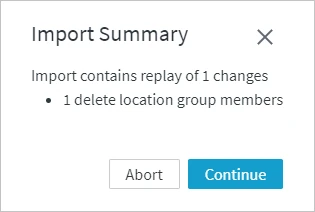
The Import Summary dialog shows the details of the import. Click Continue.