dssalertmanager - DSS 6 | Data Source Solutions Documentation
Documentation: dssalertmanager - DSS 6 | Data Source Solutions Documentation
dssalertmanager
Usage
<b>dssalertmanager</b>
Description
The dssalertmanager command is responsible for the execution of all alerts that have been configured on a hub server (across all the hubs). Alerts that are disabled or belonging to a frozen hub will not be executed.
Alerts can be created either using the dssalertconfig command or using the User Interface Alerts page.
Every alert, depending on its configured properties, will scan the hub log files and send notifications (email, Slack, etc) if any error or warning is found (including a latency check).
When executed, this command produces a log file in DSS_CONFIG/logs/dssalertmanager.out. Additionally every single alert will produce a log file in DSS_CONFIG/hubs/hub/logs/dssalert.alertout. Command dssalertmanager will also take care of rotating these log files, when appropriate, into the respective log archive directories.
Scheduling dssalertmanager
dssalertmanager can be scheduled to run at certain time intervals for monitoring the status of the DSS Hub System.
Linux
In Linux, dssalertmanager can be scheduled to run using crontab.
Following is an example to check alerts every 10 minutes.
-
Add the following line to the crontab for user root (these should be single line without wrapping):
0,10,20,30,40,50 * * * * su - dss -c '/home/mydss/dss_home/bin/dss -EDSS_HOME=/home/mydss/dss_home -EDSS_CONFIG=/home/mydss/dss_config dssalertmanager'Alternatively, the crontab can be run directly as the DSS user. Typically, the user does not have this permission, unless it is named in file /etc/cron.allow, or file /etc/cron.deny exists. In that case the following line should be added to crontab for the user (e.g. mydss):
0,10,20,30,40,50 * * * * /home/mydss/dss_home/bin/dss -EDSS_HOME=/home/mydss/dss_home -EDSS_CONFIG=/home/mydss/dss_config dssalertmanagerOutput/error redirection to cronout.log is optional.
- To verify that dssalertmanager is running correctly, check 10 minutes later that lines are being written to file alertmanager.out available in DSS_CONFIG/logs directory.
Windows
In Windows, dssalertmanager can be scheduled to run using Windows Scheduled Task.
Following is an example to check alerts every 10 minutes.
You can use either of the following two methods for creating Windows Scheduled Task.
-
Method 1: Create Windows Scheduled Task using CLI.
C:\>schtasks /create /sc minute /mo 10 /tn DSS_Alert /tr C:\dss\dss_home\bin\dssalertmanager.exe
-
Method 2: Create Windows Scheduled Task using GUI.
-
Open Task Scheduler. This can be accessed from Control Panel ▶ Administrative Tools
Alternatively, Task Scheduler can be accessed by running (Winkey+r) taskschd.msc.
2. Click **Action **▶** Create Task** 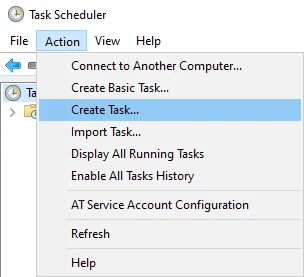 3. In **General** tab, enter task **Name**, and optionally a task **Description.** 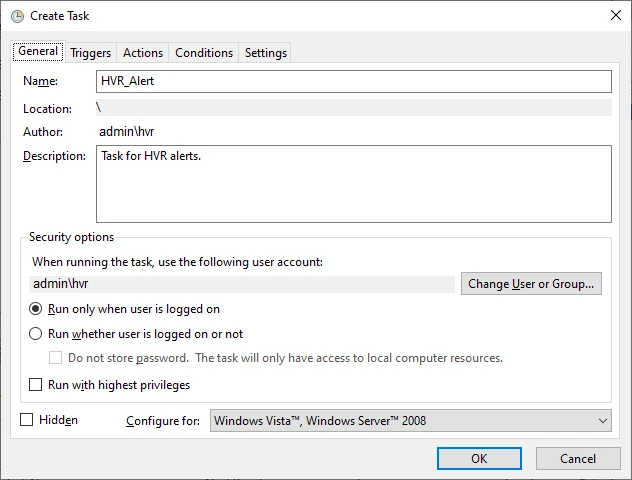 4. In **Actions** tab, click **New...** to open **New Action** dialog. 5. Browse and select the directory path for **dssalertmanager.exe** (available in **DSS_HOME\\bin**) and click **OK**. 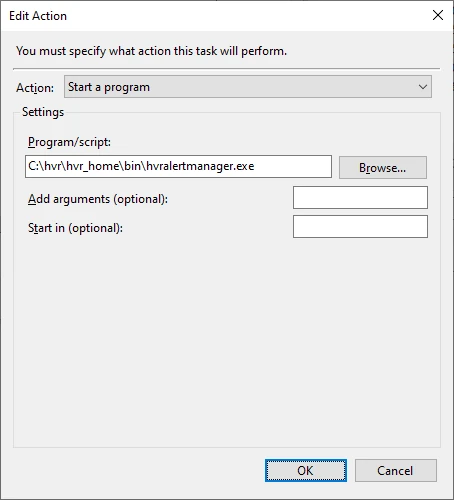 6. In **Triggers** tab, click **New...** to open **New Trigger** dialog. 7. Select the required frequency at which this task should be executed. For example, to execute this task every 10 minutes: 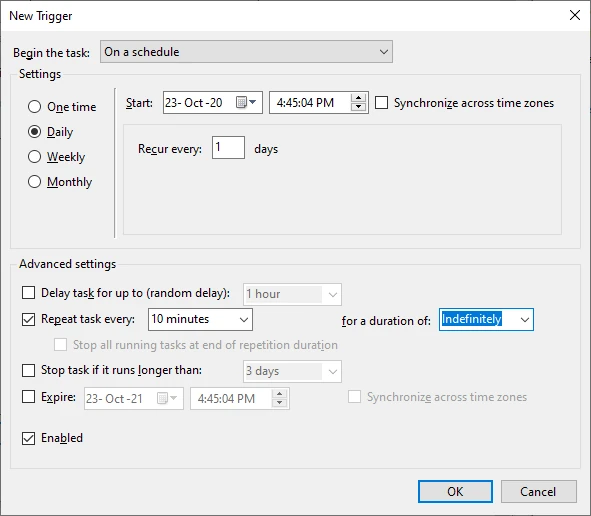 8. Click **OK** in **Create Task** dialog.To verify that dssalertmanager is running correctly, check 10 minutes later that lines are being written to file alertmanager.out available in DSS_CONFIG\logs directory.
-