Troubleshooting Access to Agents - DSS 6 | Data Source Solutions Documentation
Documentation: Troubleshooting Access to Agents - DSS 6 | Data Source Solutions Documentation
Troubleshooting DSS Agent Access Issues
This section covers various access challenges you may encounter with the DSS Agent and provides workarounds to resolve them.
Direct Command Line Interface (CLI) access is required - all commands listed on this page should be executed directly on the machine where the DSS Agent is installed.
Agent Setup Mode Time Expired
Issue
The setup mode time has expired, so you are not able to configure the agent or use the agent for replication. In the DSS UI, the following message is displayed in this scenario:

Resolution
To resolve this problem, you can use either of the following methods:
Reinitiate Setup Mode
Reinitiate Setup Mode
Reinitiate the agent setup mode and then configure the agent using DSS UI.
-
Reinitiate the agent setup mode (e.g. for the next 1 hour) using the command dssagentconfig:
dssagentconfig Setup_Mode_Timed_Until=now+1h -
Configure the agent using DSS UI.
Configure Agent from CLI
Configure Agent from CLI
-
Terminate the agent setup mode using the command dssagentconfig. Depending on how the setup mode was initiated, either of the following command needs to be executed.
-
If the setup mode was initiated using the time-based setup mode:
dssagentconfig Setup_Mode_Timed_Until= -
If the setup mode was initiated using the token-based setup mode:
dssagentconfig Setup_Mode_Token_Name= Setup_Mode_Token_Value=
-
-
Configure the agent from CLI.
Create New Admin User
Create New Admin User
Create a new agent user with AgentAdmin permissions and then configure the agent using DSS UI. For this, you need to first terminate the setup mode.
-
Terminate the agent setup mode using the command dssagentconfig. Depending on how the setup mode was initiated, either of the following commands needs to be executed.
-
If the setup mode was initiated using the time-based setup mode:
dssagentconfig Setup_Mode_Timed_Until= -
If the setup mode was initiated using the token-based setup mode:
dssagentconfig Setup_Mode_Token_Name= Setup_Mode_Token_Value=
-
-
Create a new agent user using the command dssagentuserconfig:
dssagentuserconfig -c <em>new_user</em>Supply a password for the user when prompted.
-
Grant AgentAdmin permission to this user using the command dssagentconfig:
dssagentconfig User_Access.<em>new_user</em>.level=AgentAdmin -
Configure the agent using DSS UI.
For an agent user with AgentAdmin permission, it is not required to set the agent in setup mode to configure the agent.
Terminate Agent Setup Mode
Terminate Agent Setup Mode
If the agent is already configured or if you do not want to further configure the agent, you can exit from the agent setup mode using the command dssagentconfig.
Depending on how the setup mode was initiated, either of the following command needs to be executed.
-
If the setup mode was initiated using the time-based setup mode:
dssagentconfig Setup_Mode_Timed_Until= -
If the setup mode was initiated using the token-based setup mode:
dssagentconfig Setup_Mode_Token_Name= Setup_Mode_Token_Value=
Unable to Access Agent Configuration Dialog
Issue
Unable to access the agent configuration dialog due to one of the following reasons:
-
Agent is not in setup mode and it has no users defined (when agent is configured for anonymous authentication only or agent is configured without an AgentAdmin user).
-
Forgot the username and/or password of the AgentAdmin user.
Resolution
To resolve this problem, you can use either of the following methods:
Create New Admin User
Create New Admin User
Create a new agent user with AgentAdmin permissions and then configure the agent using DSS UI.
-
Create a new agent user using the command dssagentuserconfig:
dssagentuserconfig -c <em>new_user</em>Supply a password for the new user when prompted.
-
Assign AgentAdmin permission to this user using the command dssagentconfig:
dssagentconfig User_Access.<em>new_user</em>.level=AgentAdmin -
Configure the agent using DSS UI.
For an agent user with AgentAdmin permission, it is not required to set the agent in setup mode to configure the agent.
Configure Agent from CLI
Configure Agent from CLI
Configure the agent from CLI.
-
Terminate the agent setup mode using the command dssagentconfig. Depending on how the setup mode was initiated, either of the following command needs to be executed.
-
If the setup mode was initiated using the time-based setup mode:
dssagentconfig Setup_Mode_Timed_Until= -
If the setup mode was initiated using the token-based setup mode:
dssagentconfig Setup_Mode_Token_Name= Setup_Mode_Token_Value=
-
-
Configure the agent properties from CLI.
For example, to set the agent administration permissions for a specific agent user myuser:dssagentconfig User_Access.myuser.level=AgentAdmin
Reinitiate Setup Mode
Reinitiate Setup Mode
Initiating setup mode for an agent will terminate all connections to the agent.
In setup mode, the DSS Agent does not accept any connections and is not available for any other activities except for DSS Agent configuration.
Reinitiate the agent setup mode and then configure the agent using DSS UI.
-
Reinitiate the agent setup mode (e.g. for the next 1 hour) using the command dssagentconfig:
dssagentconfig Setup_Mode_Timed_Until=now+1h -
Configure the agent using DSS UI.
Agent Setup Token is Invalid
Issue
For an agent that is in token-based setup mode, to access the Agent Service Configuration dialog in UI it is required to supply value for the token (Setup_Mode_Token_Value). If you forget or supply an invalid token value, the following error message is displayed:

Resolution
To resolve this problem, you need to reinitiate the setup mode with new token name and value.
-
Reinitiate the setup mode with new Token Name and Value using the command dssagentconfig:
dssagentconfig Setup_Mode_Token_Name=<em>new_token_name</em> Setup_Mode_Token_Value=<em>new_token_value</em> -
In DSS UI, supply the Token Value to Configure the agent.

Remote Certificate Error
Issue
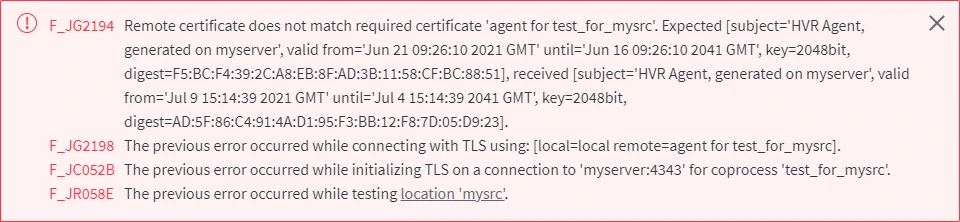
The following error message about agent certificate validation failure is displayed when connecting to a location using an DSS Agent:
Cause
- For a new location, this error is displayed when a certificate is assigned to an agent before connecting to it for the first time and while configuring/connecting to the location the wrong AGENT_HOST or AGENT_PORT is supplied.
- For an existing location that is using an (already configured) DSS Agent, this error is displayed when there is a man-in-the-middle attack or the agent has been reconfigured with a new certificate. The following conditions/scenarios can lead to reconfiguration of agent with a new certificate:
- the certificate was manually changed
- the DSS Agent was reinstalled
- the agent configuration file is lost/corrupted
Resolution
To resolve this problem,
-
For a new location, verify that the correct AGENT_HOST or AGENT_PORT is supplied.
-
For an existing location that is using an (already configured) DSS Agent, perform the following steps for DSS to automatically discover the new certificate for the agent:
-
Go to the Location Details page.
To access the Location Details page you can also click on the smart link displayed in the error message, for example, location 'mysrc' in the above screenshot.
2. Click more options and select **All Location Properties**. 3. Select **Show Discovered Properties**. 4. Delete the discovered location property **Agent Server Public Certificate**. 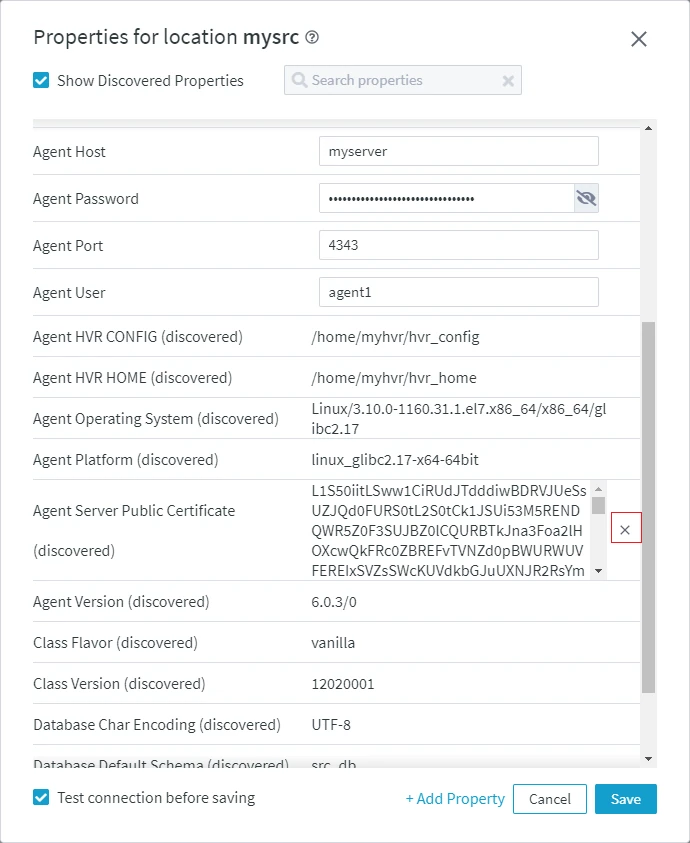 5. Unselect **Test connection before saving** and click **Save**. 6. Click **Edit** in the **Agent** pane (available in **Location Details** page). 7. Click **Configure Agent Service** in **Agent** dialog. 8. Click **Save Agent Service Configuration**. 9. Select **Test connection before saving** and click **Save**. Alternatively, the above can be performed in the CLI. Either of the following methods can be used: - Set the location property [**Agent_Server_Public_Certificate**](/docs/dss6-property-reference-location-properties#agentserverpubliccertificate) with the new certificate file that was received from the user who had created it. ```shell dsslocationconfig <em>hub</em><em>loc</em> Agent_Server_Public_Certificate=@<em>file_name</em>.pub_cert ``` - Unset the location property [**Agent_Server_Public_Certificate**](/docs/dss6-property-reference-location-properties#agentserverpubliccertificate) and allow DSS to automatically discover the new certificate. <div class="callout callout-important">Use this method only if it is expected that the agent has been reconfigured with a new certificate.
-
<div class="callout callout-important">
If the above step is performed after the agent configuration file was lost/corrupted, then execute the following command to terminate the agent setup mode:
```shell
dssagentconfig Setup_Mode_Timed_Until=
```