Deleting Tables from Channel - DSS 6 | Data Source Solutions Documentation
Documentation: Deleting Tables from Channel - DSS 6 | Data Source Solutions Documentation
Deleting Tables from Channel
This section describes the steps to delete tables from a channel. Tables can be deleted from the Tables page.
When deleting a table from a channel with activated replication:
- To prevent any pending changes of this table from being integrated you need to send a 'skip' control to the integrate job to skip all changes. The 'skip' control allows any data that is still in the integrate pipeline to be skipped for a particular table. This can be achieved using the command dsscontrol (option -s). This command should be executed before deleting a table from the channel.
- After deleting a table from a channel with activated replication, you will need to re-activate replication with option Table Enrollment.
Perform the following steps to delete a table from a channel:
-
On the left sidebar, click CHANNELS to open the Channels page.
-
On the Channels page, click the required channel to open its Channel Details page.
-
On the Channel Details page, click the tables link available in Channel Summary pane. This will open the Tables page displaying the tables relating to the channel.

Alternatively, you can access the Tables page as follows:
1\. On the left sidebar, click **TABLES** to open the **Tables** page. 2\. On the **Tables** page, select the required channel in the **Channels** selector to display only tables relating to this channel.-
On the Tables page, select the required table(s) and click Delete Tables at the top right.

You can also delete a specific table by clicking the More Options icon
 related to a specific table and selecting Delete Table.
-
In the pop-up dialog, click OK to confirm the deletion.
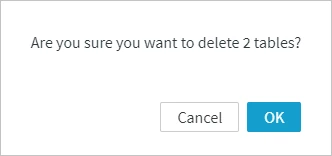
If the channel is activated, the following note will be displayed in this dialog: Note that after tables are deleted, an Activate must be performed to regenerate jobs and enroll files. Captured changes should be skipped by sending a control.
- Re-activate the channel, if the deleted table belonged to a channel with activated replication. Else, skip this step.
-
On the Table Details page, click the More Options icon
at the top right and select Activate Replication.For alternative methods to access the Activate Replication dialog, see Activate Replication.
2. In the **Activate Replication** dialog, the necessary options for reactivation is automatically selected. Click **Activate Replication**.
-
- Re-activate the channel, if the deleted table belonged to a channel with activated replication. Else, skip this step.
-
-