Current Hub - DSS 6 | Data Source Solutions Documentation
Documentation: Current Hub - DSS 6 | Data Source Solutions Documentation
Current Hub
DSS Hub is a set of channels that replicate changes between locations. You can create multiple hubs in a single DSS Hub System, and switch between them. When you switch to a certain hub it becomes 'current hub'. The name of the current hub appears at the top right on most of the user interface pages (Channels, Locations, Tables, etc).
The Current Hub tab on the System page contains information about your current hub. Under this tab, you can freeze/unfreeze the hub, create and manage hub bookmarks, delete the hub, import and export hub definitions.
Hub Card
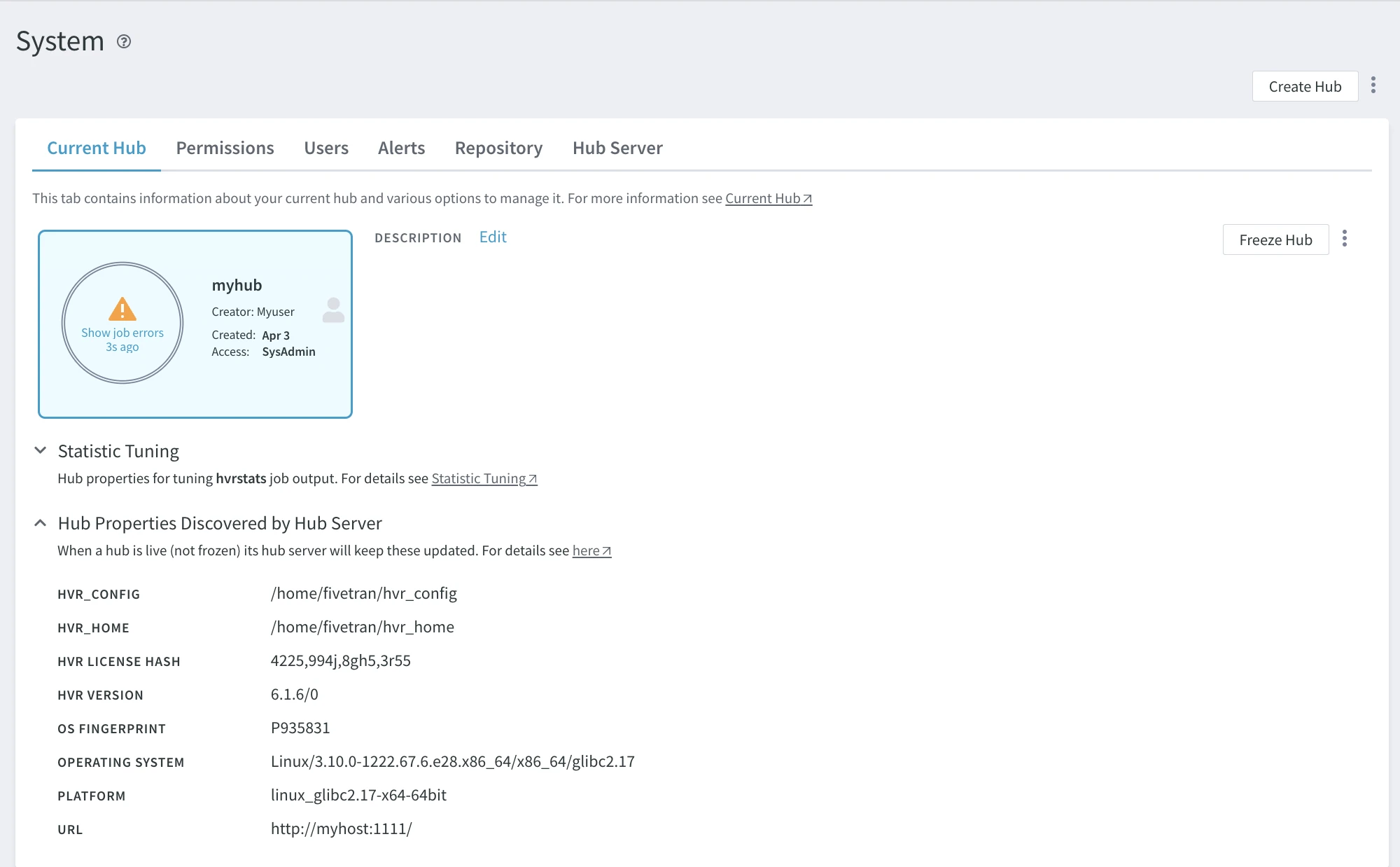
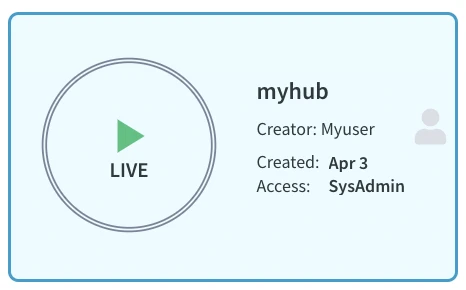
The hub card displays the hub name and description (optional), hub creator, creator's email address, hub creation date, and hub access rights for the current user. For more information on user access control, see Permissions. A colored icon on each hub card represents the current state of the hub.
Statistic Tuning
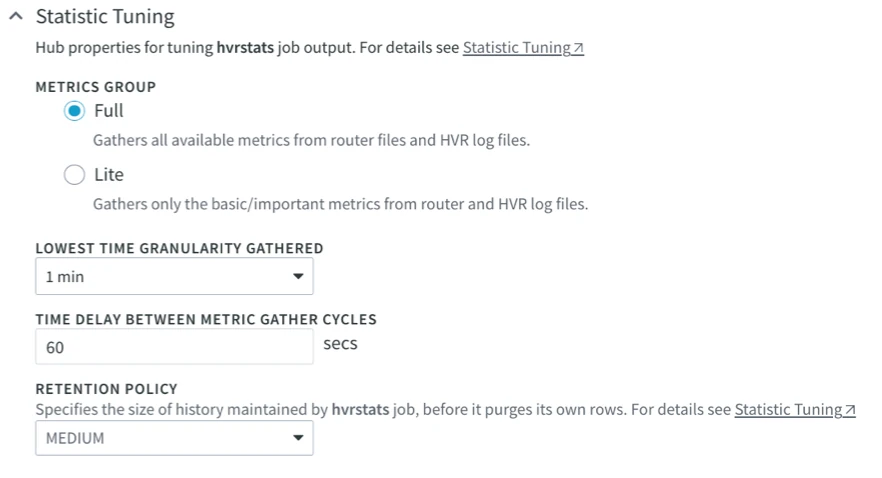
Under this section, the properties for tuning the Statistics (dssstats job) are displayed.
| Property | Description |
|---|---|
| METRICS GROUP | Specifies the set of metrics that DSS gathers. Available options are:
|
| LOWEST TIME GRANULARITY GATHERED | Specifies the lowest time granularity that the dssstats job gathers metrics. The |
| TIME DELAY BETWEEN METRIC GATHER CYCLES | Specifies the delay between gather cycles of dssstats job from the hub's log files. The |
| RETENTION POLICY | Specifies the size of history maintained by dssstats job, before it purges its own rows. Available options are:
A smaller policy will reduce the amount of disk space needed for the hub database. For example, if a hub has 2 channels with same locations (1 capture and 2 targets) and each has 15 busy tables measured using 10 status measurements, then the following is the approximate number of rows in DSS_STATS after 1 year:
To purge the statistics data immediately (as a one-time purge) from the DSS_STATS table, use the command dssstats (with option -p). |
Hub Properties
Under the hub card, a list of hub properties is displayed.
| Property | Description |
|---|---|
| DSS CONFIG | Directory path of DSS_CONFIG for the DSS Hub System. |
| DSS HOME | Directory path of DSS_HOME for the DSS Hub System. |
| DSS VERSION | version of the DSS installed on the DSS Hub System. |
| OS FINGERPRINT | Unique identifier (fingerprint) of the server on which the DSS is installed. |
| OPERATING SYSTEM | Name of the operating system on which the DSS is installed/running. |
| PLATFORM | Name of the platform used for installing the DSS. |
| URL | Base URL for the DSS Hub System. This is the URL via which users can access the DSS Hub System. This URL is supplied in (most) commands using option -R. |
Manage Hub
The following options to manage the current hub are available at the top right, as well as under the More Options menu  .
.
Freeze Hub
When you freeze a hub, the hub's scheduler and all running jobs are stopped. In a frozen hub, you cannot run any jobs such as compare, refresh, activate, deactivate.
You can freeze a hub when you no longer need it. The main benefit of freezing a hub is to stop resource consumption on the DSS Hub System while saving the state, history and configuration of the hub.
Unfreeze Hub
When you unfreeze a hub, the jobs will return to the state they were at the moment of freezing. It is important to note that if the hub is frozen for an extended period of time, a capture job(s) may not be able to resume from the moment the hub is frozen since the log files were most likely cleared up a while ago.
Delete Hub
Deleting a hub will delete everything associated with that hub. That includes all definition objects, jobs, events, statistics data, files on the disk ($DSS_CONFIG/hubs/hub/ is removed). The hub will be frozen automatically before it is deleted. Deactivating a channel(s) is not required. Exporting hub definition is a good optional step for backup.
Import Definitions
Option Import Definitions allows importing channels, locations, location groups, tables, and actions to the current hub from a JSON file.
To import a definition:
- Click the More Options menu icon and select Import Definitions.
- Select the definitions file and click Open.
The Import Hub Definition option corresponds to the dssdefinitionimport CLI command.
Export Hub Definition
Option Export Hub Definition exports all channels, locations, location groups, tables, and actions related to the hub to a JSON file. The export file can be used to import the data to a different hub.
To export hub definition:
- Click the More Options menu icon and select Export Hub Definition.
- Select the directory to save the file to and click Save.
The Export Hub Definition option corresponds to the dssdefinitionexport CLI command.
Save Hub Snapshot
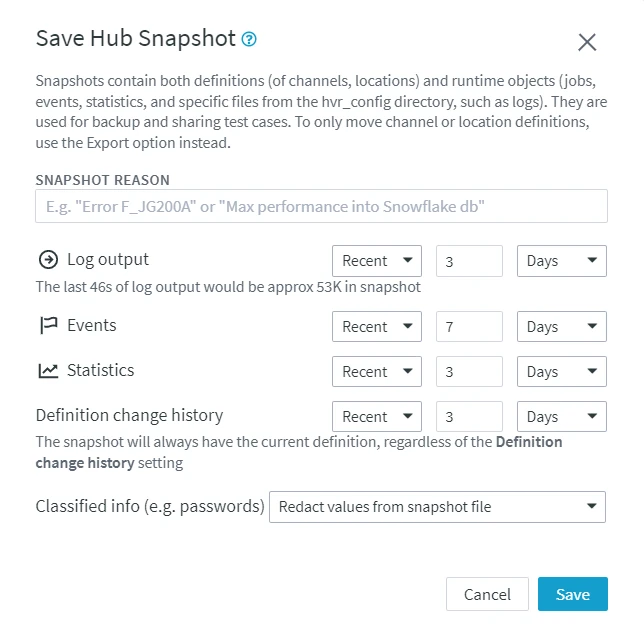
Option Save Hub Snapshot saves the snapshot of a hub. Hub snapshot is a file that can be used to store all of the data related to a hub and move it between different repositories.
The main purposes for using a hub snapshot are:
- Troubleshooting. You can share a test-case of an issue with the Data Source Solutions Technical Support. The snapshot can then be restored in a test environment for investigating the problem.
- Migration. You can move a copy of a hub from one DSS Hub System (machine) to another.
- Backup. You can create a backup of a DSS Hub for reporting purposes.
A hub snapshot contains all the data needed for these purposes, i.e. the hub snapshot metadata, information from certain repository tables (e.g. DSS_CHANNEL, DSS_TABLE, DSS_COLUMN, DSS_LOC_GROUP, DSS_ACTION, etc.), and information from the DSS_CONFIG directory (log files, enroll files, capture state files, catalog cache files, etc.).
The Save Hub Snapshot option corresponds to the dsssnapshotsave CLI command.
To create a hub snapshot:
-
Click the More Options icon
next to the Freeze Hub button and select Save Hub Snapshot. -
In the Save Hub Snapshot dialog, optionally, specify the description of the snapshot in the SNAPSHOT REASON field to identify it.
-
Select the time period, for which to save the log, events, statistics, and definition change history data. You can choose to include data for a specific period (Recent), All, or None of the data for each of the Log output, Events, Statistics, or Definition change history options.
-
In the Classified info, select one of the options:
- Redact values from snapshot file: redacts secret and confidential data in the created snapshot. Click Save.
- Encrypt zip file with single-use transport key: encrypts secret and confidential data in the created snapshot with a transport key.
- Click Save.
- In the Download dialog, click the download link to save the snapshot file.
- Copy the transport key and keep it in a safe place. The key will be required to decrypt the encrypted data when restoring a hub from the snapshot file.