Configuring DSS Agent from Browser - DSS 6 | Data Source Solutions Documentation
Documentation: Configuring DSS Agent from Browser - DSS 6 | Data Source Solutions Documentation
Configuring DSS Agent From Browser
This section describes the steps to configure the DSS Agent service from a browser. For steps to configure the agent service from the Command Line Interface (CLI), see Configuring DSS Agent from CLI.
- To configure the agent service, the DSS Agent must be installed and running.
- To access the Agent Service Configuration dialog, the agent service must either be in the 'setup mode' or you must provide agent administrator (AgentAdmin) credentials.
- The Agent Service Configuration dialog can be accessed while creating a location (see Step 2. Select Agent Connection) or by editing an existing location's agent service connection properties in the Location Details page.
If the configuration for an existing agent service is modified/updated, ensure to reflect those changes in all locations that use this agent service. For example, if the password of an agent user is updated, then that user's password must be updated in all locations that use this agent service.
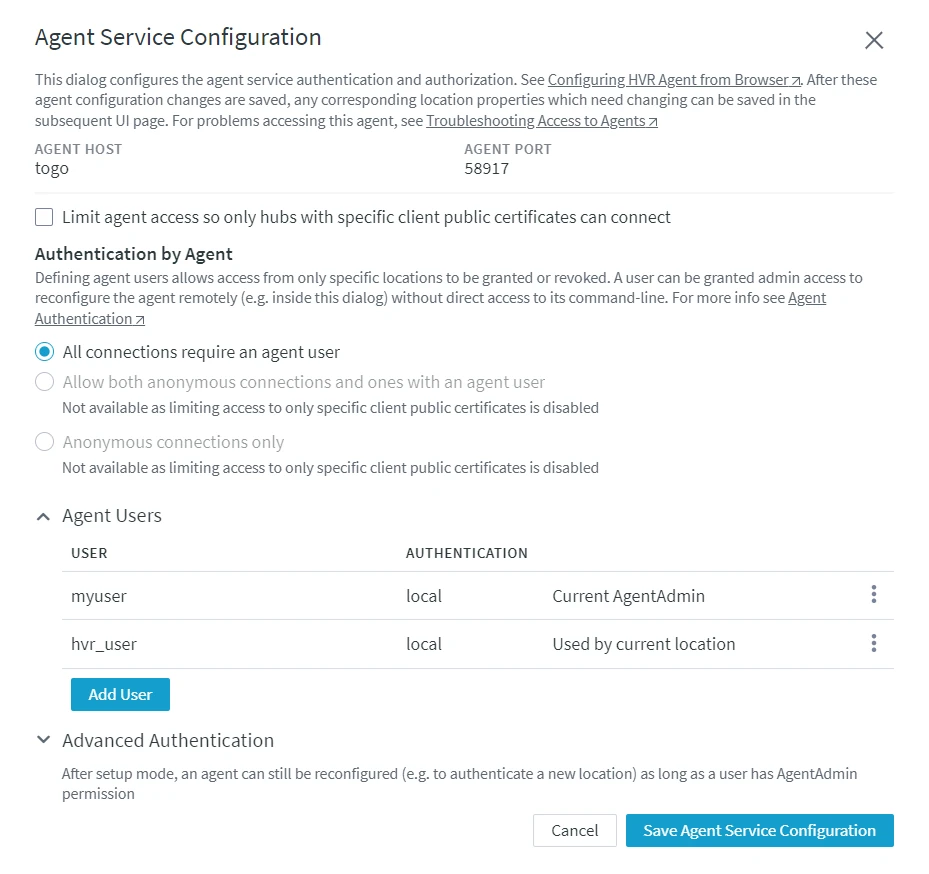
Configuring Agent Service
Perform the following steps to configure the agent service:
If the managed secrets feature is enabled, an option USE TOKEN INSTEAD is displayed in all UI fields designated for entering secrets.
Limit Agent Access
By default, the agent can be accessed by all hub system(s). However, you can also choose to allow only certain hub system(s) to access the agent service by using the client public certificate of the hub system. Selecting this option enables anonymous connections from the specified hub system(s) to the agent i.e. the hub system can connect to the agent without using the agent user credentials instead the client public certificate of the hub system is used for authentication (see step 2. Set Agent Authentication Mode).
This step is optional.
Select Limit agent access so only hubs with specific client public certificates can connect to allow only certain hub system(s) to connect to this agent. When this option is selected, the client public certificate (Agent_Client_Public_Certificate) of the current hub system is added to the list of allowed client certificates by default.
Steps to add other hub system(s) to the allowed list.
To add a hub system client certificate to the allowed list:
-
Create a public certificate file of the DSS Hub System. Execute the command dssreposconfig on the hub machine that needs to be added to the allowed list:
{% tabs %}
{% tab label="Linux" %}
dssreposconfig 'Agent_Client_Public_Certificate>@<em>file_name</em>.pub_cert'{% /tab %}
{% tab label="Windows" %}
dssreposconfig "Agent_Client_Public_Certificate>@<em>file_name</em>.pub_cert"{% /tab %}
{% /tabs %}
-
Copy the public certificate file (file_name**.pub_cert**) to the agent machine.
-
Add the public certificate file to the allowed list:
- In the Agent Service Configuration dialog, click Upload New Certificate.
- In the Upload Client Certificate dialog, specify the description for the hub system (e.g. its URL), then click Upload Public Certificate and add the public certificate file (file_name**.pub_cert**).

- Click Confirm. The client certificate will be added under the Allowed Client Certificates.
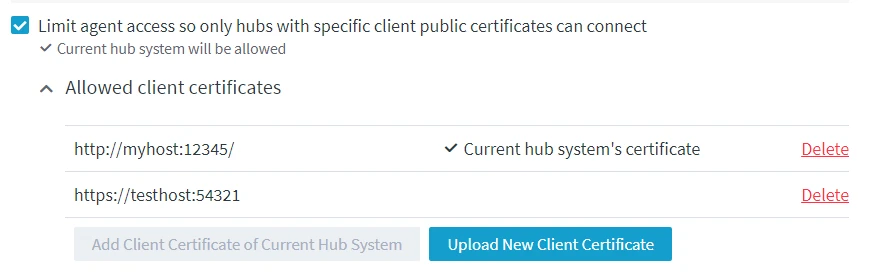
Set Agent Authentication Mode
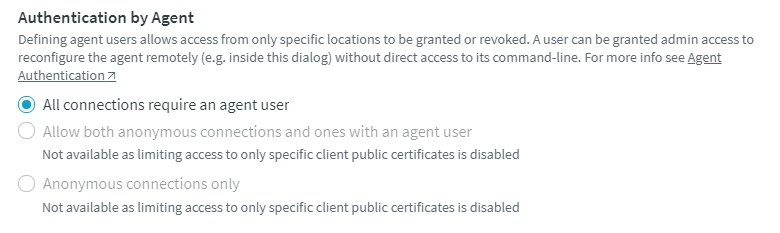
This setting allows you to select the agent authentication mode for connecting a hub to the agent. For more information about agent connection authentication mode, see Agent Connection Modes.
- Under Authentication by Agent, select the required connection authentication mode for the agent service.
- All connections require an agent user
This authentication mode requires at least one agent user to be defined (see step 3. Add Agent User) for the agent.
- **Allow both anonymous connections and ones with an agent user**
  <div class="callout callout-note">
This authentication mode is available only if option Limit agent access so only hubs with specific client public certificates can connect is selected in step 1. Limit Agent Access.
- All connections require an agent user
- **Anonymous connections only**
  <div class="callout callout-note">
This authentication mode is available only if option Limit agent access so only hubs with specific client public certificates can connect is selected in step 1. Limit Agent Access.
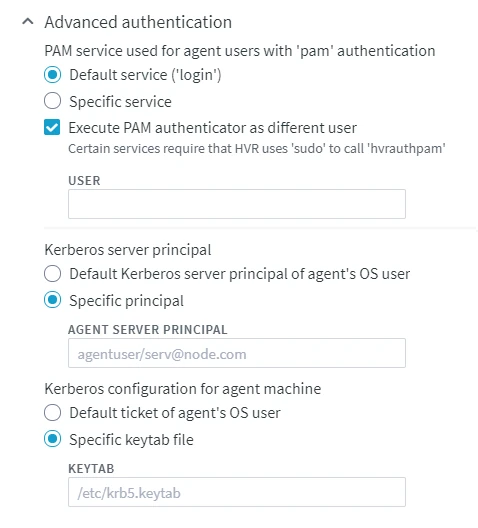
 related to each user.