Configuring Connection via Proxy Server - DSS 6 | Data Source Solutions Documentation
Documentation: Configuring Connection via Proxy Server - DSS 6 | Data Source Solutions Documentation
Configuring Connection via Proxy Server
This section describes how to set up communication between the DSS Hub Server and the Data Source Solutions server through a proxy server. The steps are provided for Linux and Windows operating systems.
To enable connection via the proxy server, it is necessary to set the environment variable https_proxy for the DSS Hub Server:
https_proxy=<https://proxy_server/>
If you need to authenticate with a proxy server username and password, the value for https_proxy should be specified according to the following pattern:
https_proxy="http(s)://username:password@proxy_server:portnumber"
where:
- username: Username required to authenticate with the proxy server.
- password: Password required to authenticate with the proxy server.
- proxy_server: IP address or hostname of the proxy server.
- portnumber: Port number on which the proxy server listens for incoming connections.
Using a proxy with SSL inspection
If your environment uses a proxy that performs SSL inspection (decrypting SSL traffic and re-signing it with a custom CA), DSS must be configured to trust that custom CA:
-
Obtain the custom CA certificate used by the proxy to sign SSL traffic (for example,
proxy-ca-cert.crt). -
Create the path to the custom certificate bundle that DSS will use and copy the default CA bundle provided with DSS into it:
mkdir -p $DSS_CONFIG/etc/cert cp $DSS_HOME/etc/cert/ca-bundle.crt $DSS_CONFIG/etc/cert/ca-bundle.crt -
Append the custom CA certificate to the copied CA bundle:
cat proxy-ca-cert.crt >> $DSS_CONFIG/etc/cert/ca-bundle.crt
This works because DSS first checks for the existence of the custom certificate bundle in $DSS_CONFIG/etc/cert/ca-bundle.crt and uses it if present; otherwise, it falls back to the default bundle in $DSS_HOME/etc/cert/ca-bundle.crt.
Configuring Connection via Proxy Server on Linux
Perform the following steps to configure connection via proxy server on Linux.
-
Suspend the capture and integrate jobs running in a channel using command dsssuspend. For example:
dsssuspend myhub mychannel -
Stop the DSS Hub Server using command dsshubserver.
dsshubserver -k -
Set the environment variable https_proxy for your operating system:
export https_proxy=<https://proxy_server/> -
Add the environment variable https_proxy into the startup file (e.g. .profile).
export https_proxy=<https://proxy_server/> -
Start the DSS Hub Server using command dsshubserver.
dsshubserver -d
Adding proxy server to systemd autostart file
The following steps should be performed as user root.
-
Add the following line to the [Service] section of the systemd unit file dsshubserver.service, which was created when configuring hub server autostart. You can locate this file in the /etc/systemd/system/ directory.
Environment="https_proxy=<https://proxy_server/>"A sample [Service] section may look as follows:
[Service] # The process start-up type 'forking' allows this service to spawn new processes Type=forking Environment="DSS_HOME=/home/mydss/dss_home" Environment="DSS_CONFIG=/home/mydss/dss_config" Environment="DSS_TMP=/home/mydss/dss_tmp" Environment="https_proxy=<https://proxy_server/>" -
Restart the DSS Hub Server service.
systemctl start dsshubserver -
Verify whether the service is active:
systemctl status dsshubserverSample output:
dsshubserver.service - Data Source Solutions HubServer
Loaded: loaded (/etc/systemd/system/dsshubserver.service; disabled; vendor preset: disabled)
Active: active (running) since Mon 2020-09-12 10:03:18 EST; 14min ago
Process: 7587 ExecStart=/home/datasourcesolutions/dss_home/bin/dsshubserver
Main PID: 7588 (dsshubserver)
Configuring Connection via Proxy Server on Windows
Perform the following steps to configure connection via proxy server on Windows.
{% tabs %}
{% tab label="User Interface" %}
-
Suspend the capture and integrate jobs running in a channel: a. In the DSS user interface, go to the Channel Details page. b. Under the Jobs pane, select the capture and integrate jobs and click Suspend Jobs at the top right of the Jobs pane.

-
Stop the DSS Hub Server service (refer to Microsoft Windows documentation for steps to configure services).
-
On the left-hand navigation bar of the DSS user interface, click System.
-
On the System page, go to the Hub Server tab.
-
Click Worker Properties.
-
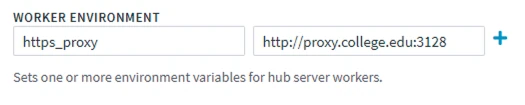
Under WORKER ENVIRONMENT, specify https_proxy for Cariable, and your proxy server address to Value.
-
Click Save Worker Properties.
-
Start the Data Source Solutions Hub Server service (refer to Microsoft Windows documentation for steps to configure services).
{% /tab %}
{% tab label="Command Line Interface" %}
-
Suspend the capture and integrate jobs running in a channel using command dsssuspend. For example:
dsssuspend myhub mychannel -
Stop the DSS Hub Server using the command dsshubserver.
dsshubserver -ah -
Start the DSS Hub Server service and set the https_proxy environment variable:
dsshubserver -E "https_proxy=<https://proxy_server/>" -acs
{% /tab %}
{% /tabs %}
Managing Proxy Server Traffic Routing
The proxy server setup reroutes all traffic through the proxy, including HTTPS connections to targets like Snowflake and AWS S3.
To work around this, add the environment variable to the hub or channel where this target is used:
| Group | Location | Action | Parameter(s) |
|---|---|---|---|
| TARGET | SNOWFLAKE | Environment | Name=no_proxy Value=.snowflakecomputing.com |
| TARGET | S3 | Environment | Name=no_proxy Value=.amazonaws.com |