Changing Table Group - DSS 6 | Data Source Solutions Documentation
Documentation: Changing Table Group - DSS 6 | Data Source Solutions Documentation
Changing Table Group
This section describes the steps to change the table group of a table or to create a new table group and assign the table to it, using option Change Table Group available on the Tables page.
By default, a table is assigned to group  GENERAL when being first added to a channel.
To change or create a table group:
-
On the left sidebar, click TABLES to open the Tables page.
-
On the Tables page, click the More Options icon
 related to the required table and click Change Table Group.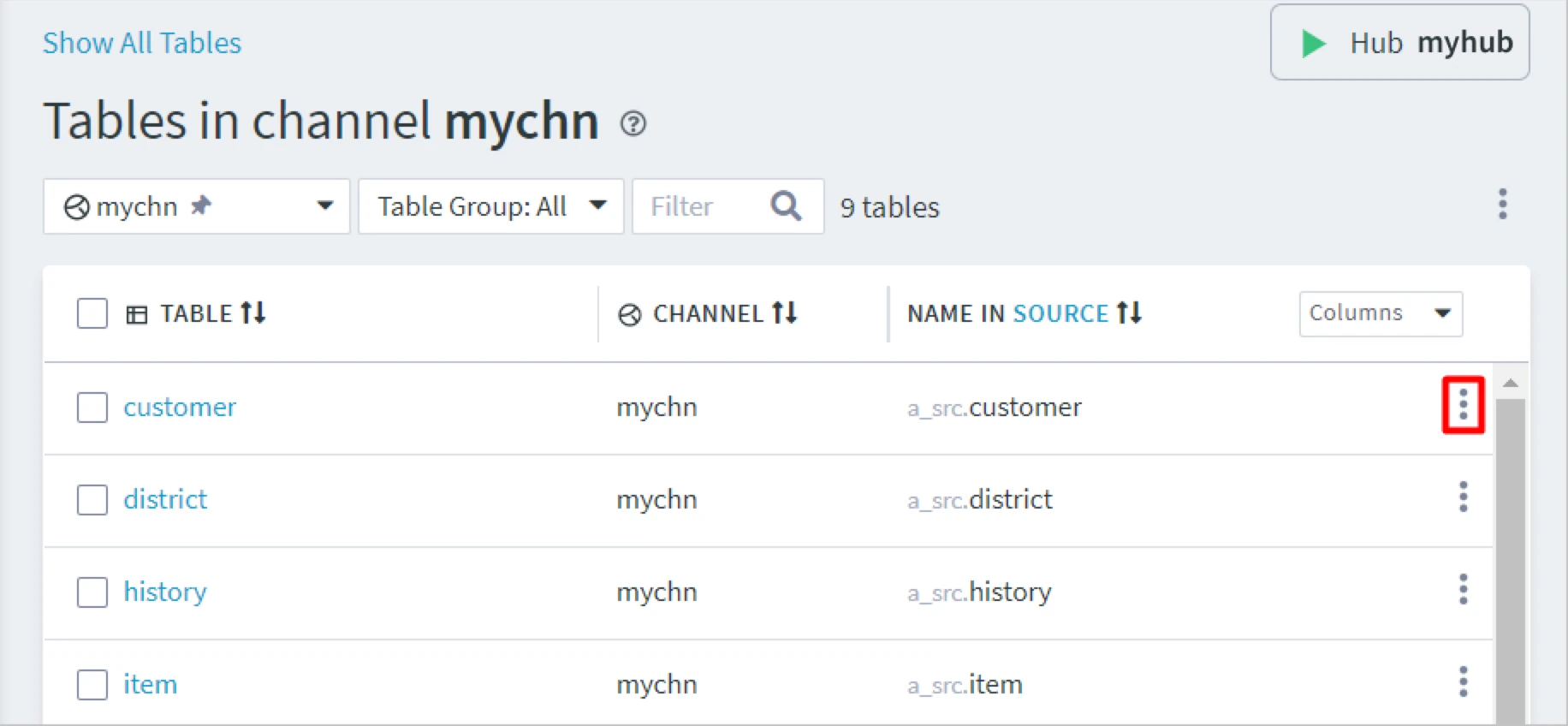
For bulk change, select multiple tables and click the More Options icon
at the top right and select Change Table Group.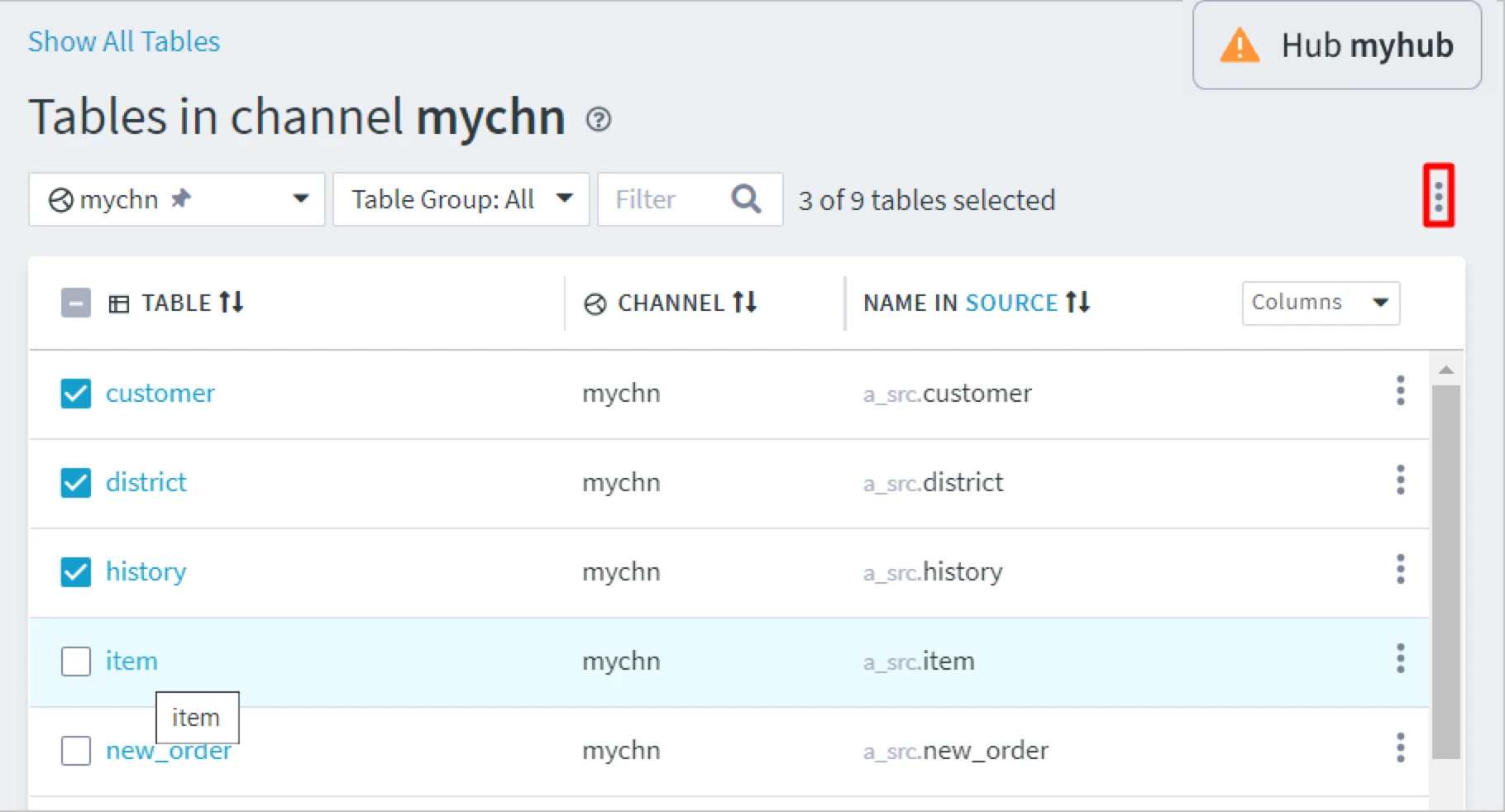
-
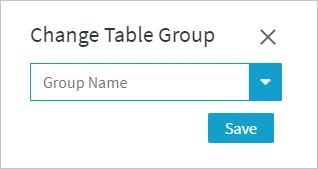
In the Change Table Group dialog:
-
To add the table to an existing group, select the group from the drop-down list and click Save.
-
To add the table to a new group, type the name of the new group in the text field and click Save.
-