Changing Location Group - DSS 6 | Data Source Solutions Documentation
Documentation: Changing Location Group - DSS 6 | Data Source Solutions Documentation
Changing Location Group
This section describes the steps to change a location group for one or more locations. Option Change Location Group is available on the Locations page.
To change the location group of a location:
-
On the left sidebar, click LOCATIONS to open the Locations page.
-
On the Locations page, select a channel to which the location belongs in the Channels selector.
-
Select the location from the list of available locations. You can also select multiple locations to define a different location group for them.
-
Click the Change Location Group button at the top right menu.
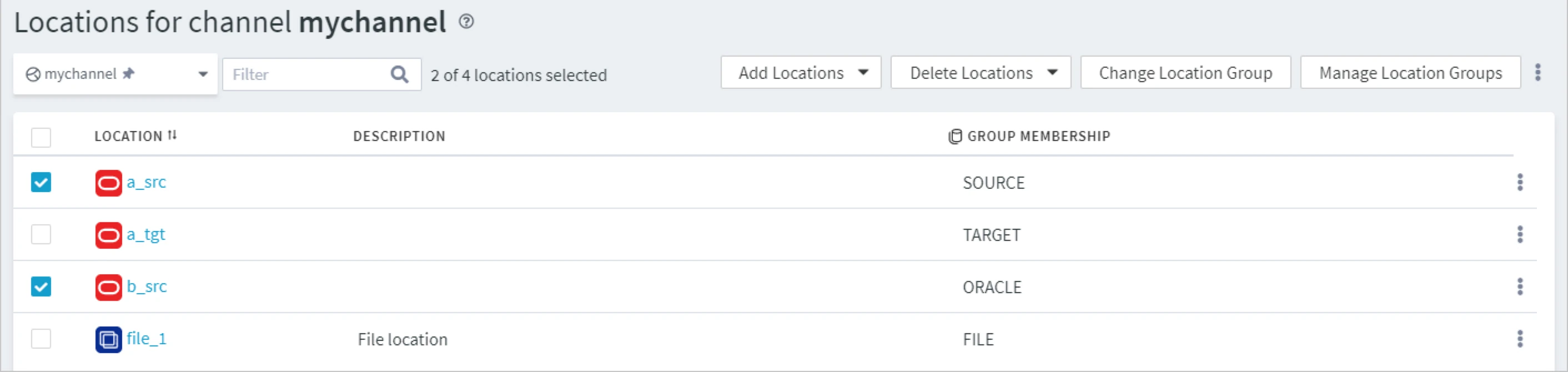
You can also change the location group of a specific location by clicking the More Options icon
 related to the location and selecting the Change Location Group option.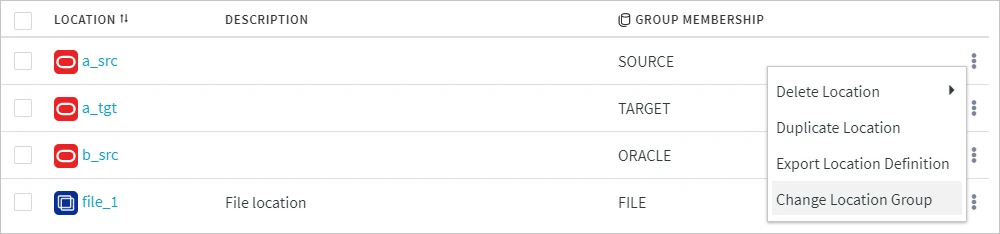
-
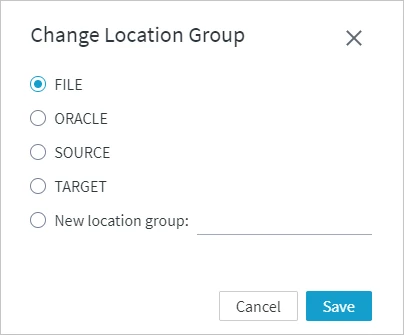
In the Change Location Group dialog:
-
select the required location from the existing ones and click Save, or
-
select New location group, type the name of the new location group and click Save.
-