Capture from Oracle TDE - DSS 6 | Data Source Solutions Documentation
Documentation: Capture from Oracle TDE - DSS 6 | Data Source Solutions Documentation
Capture from Oracle TDE
Data Source Solutions DSS supports capturing tables that are encrypted using Oracle Transparent Data Encryption (TDE). Capturing tables located in encrypted tablespace and tables with encrypted columns are supported for Oracle version 11 and higher.
DSS supports software and hardware (HSM) wallets. If the wallet is not configured as auto-login (refer to Oracle internal file cwallet.sso), use the location property/field WALLET PASSWORD (Oracle_TDE_Wallet_Password) to set password for the Oracle TDE wallet. DSS does not support environments where the wallet password cannot be provided, for example, Amazon RDS for Oracle and OCI Autonomous Database Serverless.
Software wallets can be located in ASM or in a local file system. DSS must always be provided with access to the wallet file:
-
For configurations where redo logs are captured remotely from ASM and the wallet is also located in ASM: See section Accessing TDE Wallet Through BFile Interface to learn how to access the wallet through BFile.
-
For configurations where redo logs are captured remotely through BFile: The wallet will also be accessed through BFile, and no additional configuration is needed.
-
For wallets located in a local file system: DSS requires either permission to read the wallet file, or a trusted executable for DSS should be created in DSS_HOME/sbin with the command
chmod +4755. -
For wallets configured with local auto-login: The DSS process reading the wallet must run on the same machine where the wallet was originally created and by the user who created the wallet (usually the oracle user). This requirement ensures DSS can decrypt the content of the wallet correctly. Note that this may restrict remote access options to the wallet.
Steps for creating the trusted executable
The following steps should be performed/executed on behalf of the Oracle's operating system user.
-
Copy the dss executable to dss_oracle directory using the following command:
cp $DSS_HOME/bin/dss $DSS_HOME/sbin/dss_oracle -
On Linux, use patchelf to set the rpath for dss_oracle as follows:
$DSS_HOME/lib/patchelf --set-rpath $DSS_HOME/lib --force-rpath $DSS_HOME/sbin/dss_oracle -
Change the permissions for dss_oracle with the following command:
chmod 4755 $DSS_HOME/sbin/dss_oracle -
Check the permissions of dss_oracle using the ls command:
ls -l $DSS_HOME/sbin/dss_oracleThe output should resemble the following:
-rwsr-xr-x 1 oracle oinstall 93288688 Sep 21 10:39 <path-to-dss-home>/dss_home/sbin/dss_oracle
-
In Oracle 12, for replicating encrypted columns, the DSS database user must have explicit **select** privileges on sys.user$ and sys.enc$ tables.
grant select on sys.user$ to dssuser;
grant select on sys.enc$ to dssuser;
Further channel configuration changes are not required; DSS automatically detects encryption and opens the wallet when it is encountered.
Since version 6.1.5/3, auto-login wallets on Oracle version 11 are no longer supported. They are still supported for Oracle version 12 or higher.
Accessing TDE Wallet Through BFile Interface
The primary usage of this method is remote capturing on ASM systems.
To configure access to a TDE wallet on a remote ASM system through the BFile interface, follow these steps (while creating a location or by editing the existing location's source and target properties):
-
Select capture method Direct Redo Access (equivalent to Capture_Method=DIRECT).
-
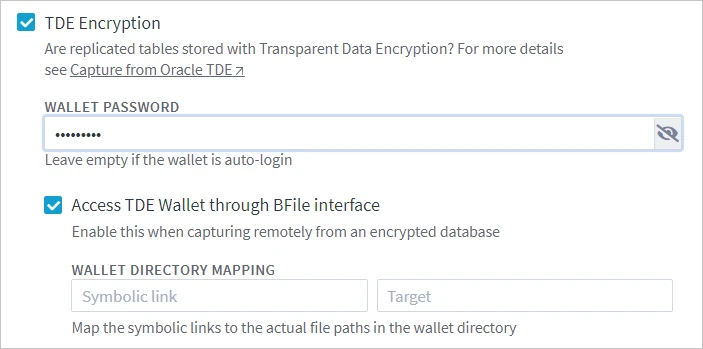
If the wallet is not configured as auto-login, select option TDE Encryption and specify the wallet’s password in the WALLET PASSWORD field (equivalent to Oracle_TDE_Wallet_Password).
-
Select Access TDE Wallet through BFile interface (equivalent to Oracle_TDE_Wallet_Reading_By_BFile).
-
The WALLET DIRECTORY MAPPING fields (equivalent to Oracle_BFile_Dirs_Mapping) should only be filled if the wallet directory path includes symbolic links. This is necessary because Oracle does not allow access through the BFile interface to a directory that has symbolic links in its path.
For example, if the wallet directory is /var/foo/xxx, where /var/foo/ is a symbolic link to path /yyy/zzz. Thus, the real path to the wallet directory is /yyy/zzz/xxx. In this case, /var/foo should be specified in the Symbolic link field and /yyy/zzz should be specified in the Target field.
-
Configure access to the wallet directory through the BFile interface. A dba user must execute the following commands:
create or replace directory <em>dir_name</em> as '<em>full_path_to_wallet_dir_on_oracle_server</em>'grant read on directory <em>dir_name</em> to <em>username</em>
Once everything is set up, DSS will automatically find the wallet's directory and read the wallet through the BFile interface.
Oracle Key Vault
Since v6.1.5/7, DSS supports capture from Oracle databases that have TDE configured with wallets stored in Oracle Key Vault (OKV).
Auto-login OKV wallets are supported only with DSS 6.2.0 or higher and for Linux (tested on Oracle Linux 7.8). For other configurations, ensure that your OKV is set up to use a manual password-protected wallet to maintain compatibility with DSS's capture process.
The following is required to use DSS with OKV:
-
The OKV client must be installed on:
- The capture machine if the DSS agent captures changes from the Oracle database, or
- The hub machine if the DSS hub directly connects to the source Oracle database.
-
Oracle location:
- Select the TDE Encryption option while creating a location or by editing the existing location's source and target properties and specify the wallet’s password in the WALLET PASSWORD field (the equivalent location property is Oracle_TDE_Wallet_Password).
-
Define the following three actions on the source Oracle location:
Location Action Parameter(s) Oracle Environment Name=DSS_EXPORT
Value=OKV_HOME=OKV_client_installation_pathOracle Environment Name=DSS_WALLET_PKCS11_LIB_DIR
Value=OKV_HOME/libOracle Environment Name=OKV_HOME
Value=OKV_client_installation_path