Adding SAP Tables to a Channel - DSS 6 | Data Source Solutions Documentation
Documentation: Adding SAP Tables to a Channel - DSS 6 | Data Source Solutions Documentation
Adding SAP Tables to a Channel
Adding tables to a channel is one of the steps performed when you create the channel for replication and involves selecting tables from a source location.
Option Add Tables corresponds to the dssadapt CLI command.
The Table Selection dialog allows you to add tables from SAP database, select the tables to be included in or excluded from a channel, and assign a table group to tables.
- When adding tables to a channel, this dialog is displayed only if the location property SAP Source (SAP_Source) is defined (while creating a location or by editing the existing location's source and target properties).
- When adding tables from a SAP NetWeaver location, this dialog is displayed only if the location property 'Use loc_type table dictionaries only, instead of SAP dictionaries' (NetWeaver_Native_DB_Dictionaries) is not defined (while creating a location or by editing the existing location's source and target properties).
- For Usage-based Subscription, an additional SAP Unpack license is required for adding the pool, cluster, and long text (STXL) tables to a channel using the Table Selection dialog.
The left pane of the Table Selection dialog is where you select tables from a source database. By default, the left pane displays tables belonging only to the Finance module. You can select other modules using the Module field, this allows you to add tables from multiple modules. In the left pane, the Table name, Description (fetched from the SAP dictionary in English), and additional information are displayed. The table list displayed can be filtered by Description. All tables selected in the left pane are automatically added to the list in the right pane. The right pane displays the tables that will actually be added to a channel and when you click Show table already in channel, the tables that are already existing in the channel are also displayed. The Show table already in channel button is displayed only when there are tables already existing in the channel. You can cancel/revert the table selection either by clicking the cross icon
 displayed next to a desired table in the right pane or unselecting the table in the left pane. Both panes are mutually dependent: unselecting a table in one pane automatically unselects it in the other pane.
The SAP table selection uses SAP metadata to find related tables. This helps a user to find relevant related tables. The total number of main tables and those referenced by the main tables are displayed below the table list in both panes. There is also an option to show all tables referenced by the reference tables.
When SAP pool, cluster, and long text (STXL) tables are added to a channel using the Table Selection dialog, the following actions are automatically defined:
-
TableProperties with parameters PackedInside, CoerceErrorPolicy, and CoerceErrorType
For each container (pool/cluster) table a separate action TableProperties is defined.
- This action is not defined for long text (STXL) tables.
-
Transform with parameter SapUnpack
Irrespective of the number of tables, only a single action Transform is defined.
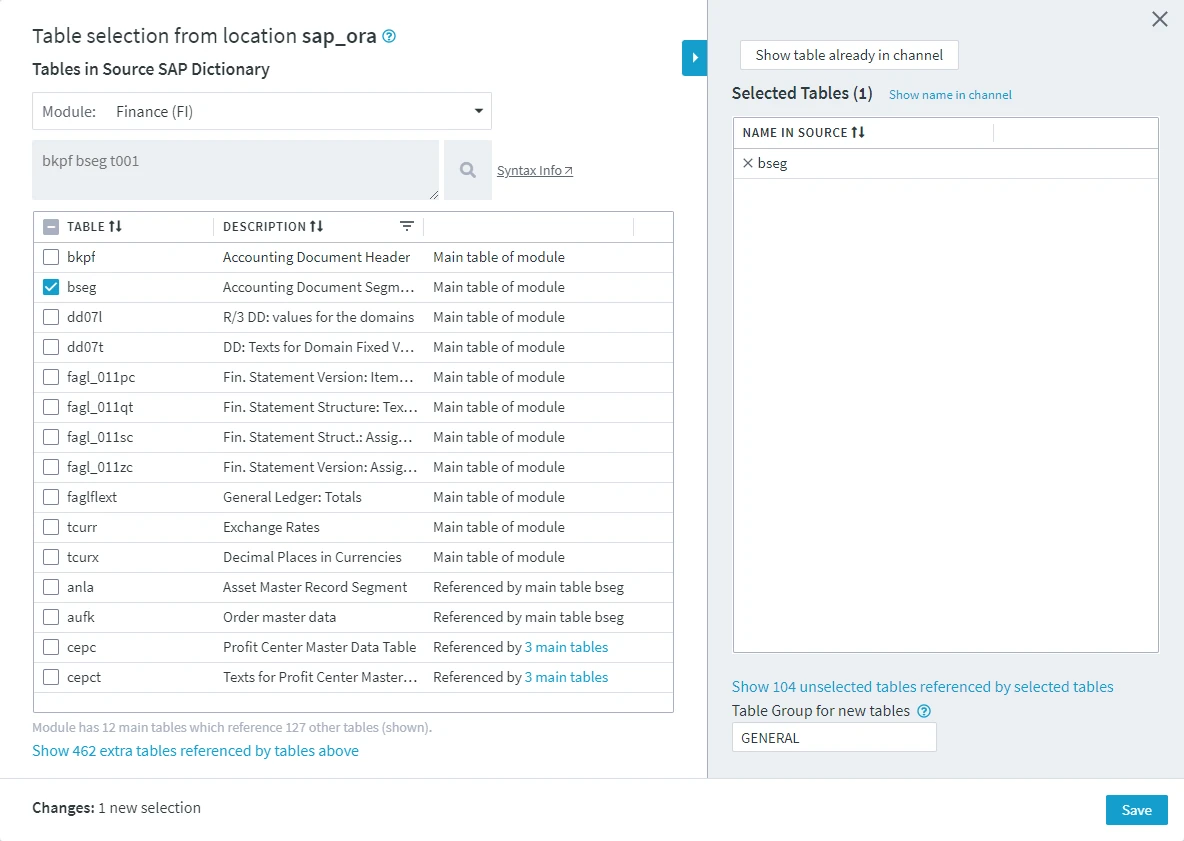
Table Filtering
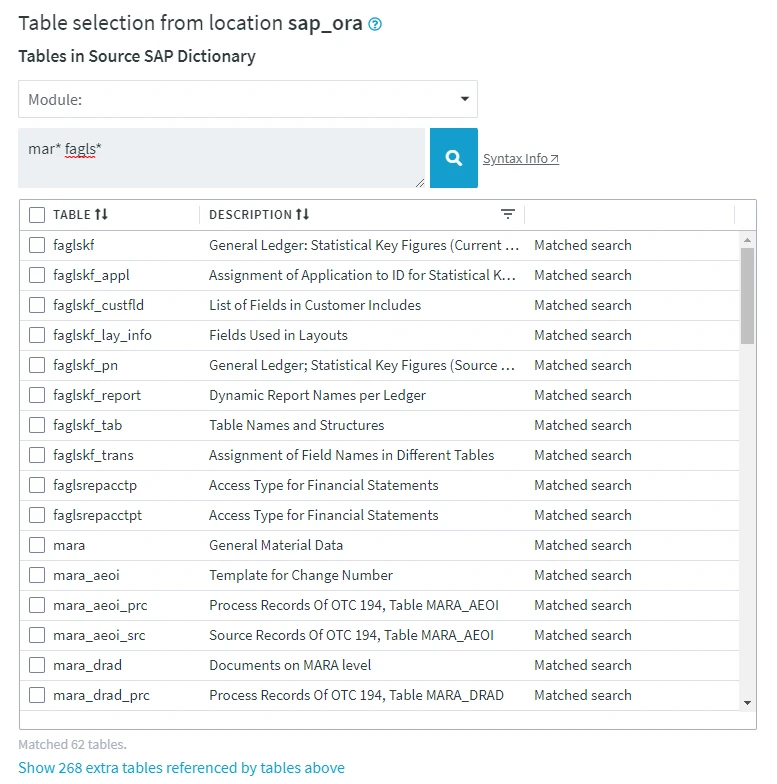
You can use the search box to find the tables you need: only the tables matching a specified pattern will be displayed. For example, mar* fagls* will filter out all table names that start with mar and fagls.
Using the search field resets the Module filter and list tables from all available modules.
Syntax for SAP Table Filtering
This section describes the syntax for filtering SAP tables. The syntax for filtering non-SAP tables is described in section Syntax for Table Filtering.
<em>tablename </em>[<b>-</b><em>tablename</em>]<b>...</b> <em>tablename</em>-
Value tablename can be a literal or a pattern. Pattern matching can be done (only for tables) using the special symbols *, ? or [characters]. For DSS versions up to 6.1.0/12, if the table name contains the special character /, then the table name must be enclosed in double quotes.
-
Special symbol - is used to define negative patterns. Tables matching the negative pattern are excluded from the preceding pattern's result. In the following example, the filter selects all tables whose name begins with t, but excludes all tables whose name begins with tmp or ends with _temp.
t* -tmp* -*_temp
Empty lines and comments (e.g. # Test) are ignored.
Examples for Filtering SAP Tables
mara                 # Match table named 'mara' from all modules.

mar*                 # Match all tables whose name begins with 'mar' from all modules.

"/bev1/lut906"       # Match table named '/bev1/lut906' from all modules.
                     # Use double quotes if there is a slash in table name.
Table Group
By default, the selected tables are assigned to group GENERAL. You can change the table group name by entering a custom name in the Table Group for new tables field.
License for Unpacking SAP Tables
For Usage-based Subscription, an additional SAP Unpack license is required to unpack the cluster and pool tables from the SAP database. Contact Data Source Solutions Technical Support to obtain the necessary SAP Unpack license. For the Consumption-based model, a separate license is NOT required.
DSS supports multi-licensing for Usage-based Subscription; this means a hub system can have several licenses registered simultaneously. For example, one license enables all DSS features (except SapUnpack) to be used perpetually and another license enables the SapUnpack feature.
-